| Problem | Possible Cause | Recommended Fix |
|---|---|---|
| iPhone 13 Blue Screen | Corrupt iOS 18 Firmware Update | Force Restart |
| Stuck on Boot Loop | System Partition Error | DFU Mode Restore |
| Frozen Blue Screen | Insufficient Storage During Update | Recovery Mode Update |
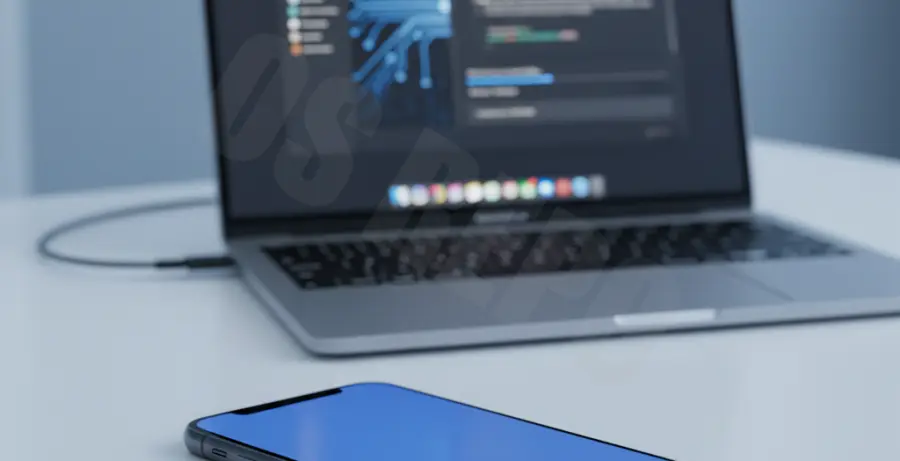
What is the iPhone 13 blue screen after iOS 18 update fix?
The iPhone 13 blue screen after the iOS 18 update is a critical system error often referred to as the “Blue Screen of Death” (BSOD). This occurs when the operating system encounters a fatal error during or immediately after the installation process.
This issue typically signifies a communication failure between the iOS 18 kernel and the iPhone 13 hardware. While it looks intimidating, it is usually a software-level conflict caused by corrupted update files or interrupted data migration.
Finding a fix involves resetting the hardware’s power cycle or forcing the device into a state where it can re-receive the official firmware from Apple’s servers. Following the correct sequence is vital to avoid data loss.
Step-by-Step Solutions
Method 1: Perform a Force Restart
The first step to resolve an unresponsive blue screen is a hard reset. This cuts power to the logic board and forces the software to reload from the bootrom.
Press and quickly release the Volume Up button. Press and quickly release the Volume Down button. Finally, press and hold the Side Power Button until the Apple logo appears.
Method 2: Recovery Mode via Computer
If the blue screen persists, you must use a Mac or PC to re-install the firmware. Connect your iPhone 13 to your computer using a certified Lightning cable.
Open Finder or iTunes. Perform the same button sequence as Method 1, but keep holding the Side Button even after the Apple logo appears until you see the “Connect to Computer” screen.
Method 3: DFU Mode (Deep Firmware Update)
For persistent iOS 18 boot errors, DFU mode is the most advanced fix. This bypasses the iBoot bootloader to interact directly with the hardware.
# Steps to enter DFU mode for iPhone 13:
1. Connect device to Mac/PC.
2. Press Vol Up, then Vol Down.
3. Hold Power for 10 seconds.
4. While holding Power, hold Vol Down for 5 seconds.
5. Release Power but continue holding Vol Down for 10 seconds.
# Screen should remain black if successful.
Method 4: Update via Apple Configurator 2
If you are using a Mac, you can use Apple Configurator 2 to “Revive” the device. This attempts to fix the recovery OS without erasing your personal data.
Select your iPhone 13 in the app, right-click, and choose Advanced > Revive Device. This is often the most successful method for iOS 18-specific bricking issues.