| Method | Difficulty | Success Rate |
|---|---|---|
| Recovery Mode Reset | Medium | High |
| Terminal Reset Tool | Advanced | Very High |
| Safe Mode Verification | Easy | Moderate |
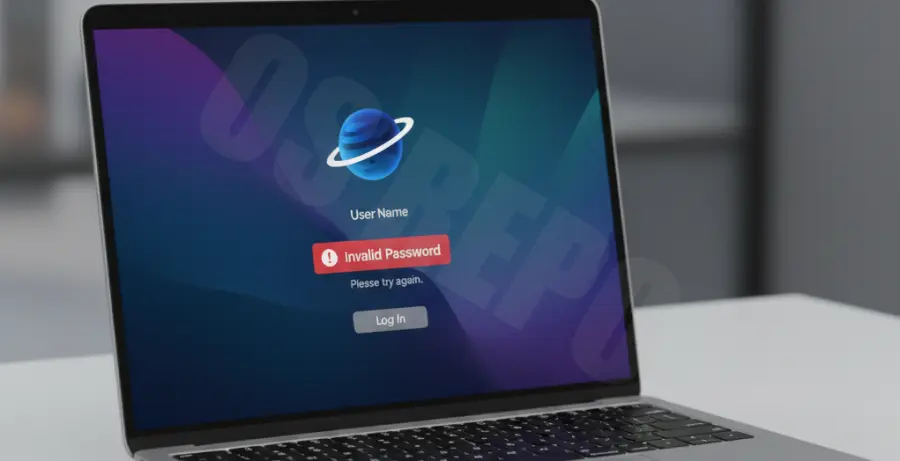
What is macOS Sequoia Login Password Not Working?
This issue occurs when a user enters the correct credentials, but macOS Sequoia fails to authenticate the session. It often manifests after a major OS update or a FileVault encryption glitch.
The “macOS Sequoia login password not working” error can be caused by corrupted keychain files, keyboard layout mismatches, or system permission errors during the migration to the new OS version.
In some cases, the system may simply fail to recognize the input due to a bug in the Sequoia login window UI, requiring a forced refresh of the password database via Recovery Mode.
Step-by-Step Solutions
1. Check Keyboard Layout and Caps Lock
Ensure that the Caps Lock key is not active. macOS Sequoia sometimes defaults to a different keyboard layout (like US vs. British) on the login screen after an update.
Click the input source icon in the top-right corner of the login screen to verify the correct language is selected before re-typing your password.
2. Reset Password via Recovery Mode
If the password is definitely correct but rejected, you must use the built-in Recovery tools. This is the most reliable method to bypass a stuck login screen.
Shut down your Mac. For Apple Silicon Macs, press and hold the Power button until “Loading startup options” appears. For Intel Macs, hold Command + R during restart.
Once in Recovery Mode, navigate to the top menu bar and select Utilities > Terminal. Type the following command and press Enter:
resetpasswordFollow the on-screen instructions in the Reset Password assistant to select your user account and create a new login credential.
3. Boot into Safe Mode
Safe Mode clears system caches and disables third-party login items that might be interfering with the authentication process in macOS Sequoia.
Restart your Mac and hold the Shift key (Intel) or hold the Power button and select the volume while holding Shift (Apple Silicon). If you can log in here, the issue is likely caused by a startup application.
4. Verify FileVault Status
FileVault can sometimes prevent the login window from loading the correct user profile. If you see a progress bar that gets stuck after entering your password, FileVault may be struggling to decrypt the disk.
Use the Recovery Mode method mentioned above to “Unlock” the disk in Disk Utility before attempting to reset the password or restart the system.