| Fix Method | Difficulty Level | Estimated Time |
|---|---|---|
| Launch in Safe Mode | Beginner | 2 Minutes |
| Disable COM Add-ins | Intermediate | 5 Minutes |
| Repair Microsoft Office | Intermediate | 10-15 Minutes |
| Install Windows Updates | Beginner | 20 Minutes |
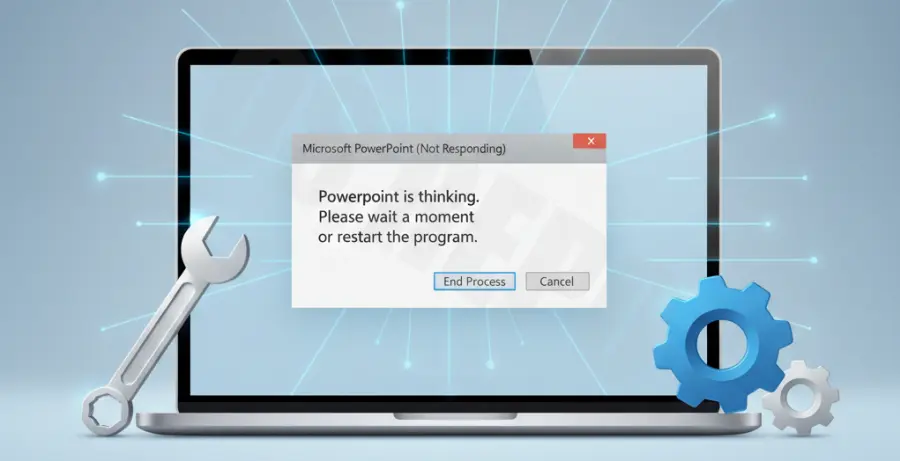
What is PowerPoint Not Responding?
The “PowerPoint Not Responding” error occurs when Microsoft PowerPoint freezes, hangs, or fails to process user input. It often results in a white screen or a spinning cursor, indicating the application has encountered a conflict it cannot resolve.
This issue can be caused by outdated software, corrupt installation files, or conflicting third-party add-ins. In some cases, large file sizes or high-resolution media within the presentation can also trigger performance bottlenecks.
Understanding this error is the first step toward a fix. It typically signals a resource conflict between the Office suite and the operating system or another background process.
Step-by-Step Solutions
1. Start PowerPoint in Safe Mode
Safe Mode allows you to open PowerPoint without loading certain extensions or add-ins. This helps determine if an external plugin is causing the crash.
To launch PowerPoint in Safe Mode via the command line, use the following syntax:
powerpnt /safeAlternatively, hold the CTRL key while clicking the PowerPoint icon and select “Yes” when prompted to start in Safe Mode.
2. Disable COM Add-ins
If Safe Mode works, an add-in is likely the culprit. You need to disable them one by one to find the problematic extension.
Go to File > Options > Add-ins. Select COM Add-ins in the Manage box and click Go. Uncheck all active add-ins and restart the application.
3. Repair the Microsoft Office Suite
Corruption in the core Office files can lead to frequent hangs. Windows includes a built-in repair utility to fix these files without deleting your data.
Open the Control Panel, navigate to Programs and Features, find Microsoft Office in the list, and click Change. Choose Online Repair for the most thorough fix.
4. Check for Windows and Office Updates
Software conflicts often arise from version mismatches. Microsoft frequently releases patches that resolve known bugs related to “Not Responding” errors.
Go to Settings > Update & Security > Windows Update and click “Check for updates.” Also, within PowerPoint, go to File > Account > Update Options and select Update Now.
5. Verify Anti-virus Software
Sometimes, your anti-virus software may conflict with PowerPoint. Ensure that your security software is up to date and check if it has flagged any Office processes.
Try temporarily disabling the anti-virus to see if the “Not Responding” error persists. If it resolves, you may need to add PowerPoint as an exception in your security settings.