Symptoms & Diagnosis
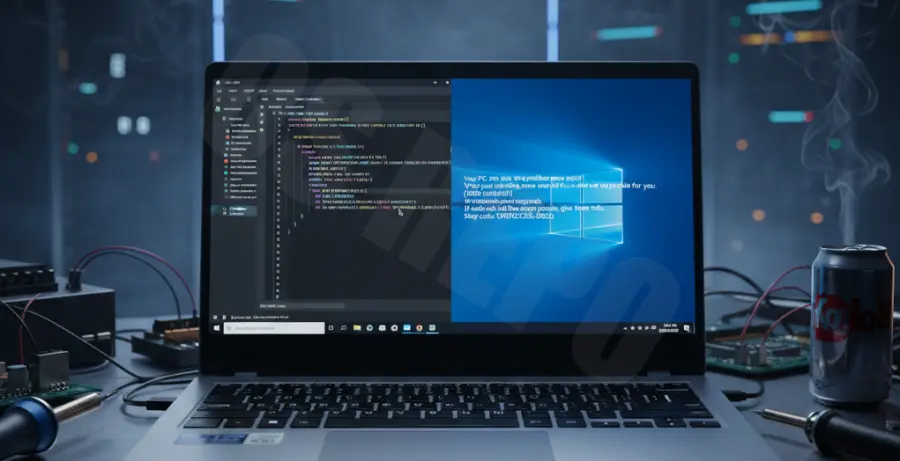
Visual Studio Code is generally a lightweight and stable editor. However, some Windows 10 users encounter a Blue Screen of Death (BSOD) when launching the application or during heavy coding sessions.
The first step is identifying the specific error code. Common BSOD codes associated with VS Code include “CRITICAL_PROCESS_DIED,” “CLOCK_WATCHDOG_TIMEOUT,” and “DPC_WATCHDOG_VIOLATION.” These often point to conflicts between the Electron framework (which powers VS Code) and your hardware drivers.
To diagnose the issue, check the Windows Event Viewer. Look under “Windows Logs” > “System” for Critical errors that occurred at the time of the crash. This will help you determine if a specific driver, like your GPU or network card, is the culprit.
Troubleshooting Guide
The most common cause for VS Code crashing Windows 10 is hardware acceleration. Visual Studio Code uses the GPU to render its interface. If there is a driver conflict, it can freeze the kernel and trigger a BSOD.
Method 1: Disable Hardware Acceleration
You can force VS Code to start without hardware acceleration using a command-line flag. Open your terminal or Command Prompt and run the following:
code --disable-gpuIf the application opens without crashing, you can make this change permanent. Open the Command Palette (Ctrl+Shift+P), type “Preferences: Configure Runtime Arguments,” and add the following line to the JSON file:
"disable-hardware-acceleration": trueMethod 2: Update Graphics Drivers
Since VS Code relies heavily on Electron, outdated Integrated or Dedicated graphics drivers are frequent triggers for system instability. Use the table below to identify where to get your updates:
| Driver Type | Source | Common BSOD Code |
|---|---|---|
| Intel UHD Graphics | Intel Download Center | DPC_WATCHDOG_VIOLATION |
| NVIDIA/AMD GPU | GeForce Experience / Adrenalin | VIDEO_TDR_FAILURE |
| System BIOS | Motherboard Manufacturer | CLOCK_WATCHDOG_TIMEOUT |
Method 3: Clear VS Code Cache
Corrupted workspace data can sometimes cause high CPU spikes that lead to a crash. Try clearing the global code cache by navigating to the following directory and deleting the “Cache” and “CachedData” folders:
%AppData%\Code\CachePrevention
To prevent future BSODs while using VS Code on Windows 10, ensure your operating system is fully patched. Microsoft frequently releases stability updates for the Electron framework through Windows Update.
Additionally, monitor your extensions. Some poorly optimized extensions can leak memory, leading to a “Memory Management” BSOD. Disable recently installed extensions one by one to see if stability improves.
Finally, consider increasing your system’s virtual memory (page file) size. If you are working on massive projects with many background processes, Windows may crash if it runs out of physical and virtual memory simultaneously.