Immediate Fix
The most common cause of a Blue Screen of Death (BSOD) during React development is the Webpack Dev Server overwhelming the system’s file watcher limits. This triggers kernel-level instability.
To fix this immediately, you must limit the frequency of file polling and ensure that the server ignores the node_modules directory. Update your webpack.config.js file as follows:
# Open your webpack.config.js and add/edit the watchOptions
module.exports = {
  // ... other config
  devServer: {
    watchOptions: {
      poll: 1000,       // Check for changes every second instead of instantly
      ignored: /node_modules/, // Do not watch dependency files
      aggregateTimeout: 300,  // Delay the rebuild after the first change
    },
  },
};
For React projects created with Create React App (CRA), you can try setting an environment variable in a .env file at the project root to change how the watcher behaves.
CHOKIDAR_USEPOLLING=true
WATCHPACK_POLLING=true
Technical Explanation
A Blue Screen of Death indicates that a process has caused an unrecoverable error in the Windows Kernel. When Webpack Dev Server runs, it uses a library called chokidar to monitor thousands of files for changes.
In large React applications, the default recursive file-watching behavior can exhaust system resources or trigger bugs in filesystem drivers (like ntfs.sys). This is especially common when fsevents or inotify limits are reached, leading to memory corruption and a system crash.
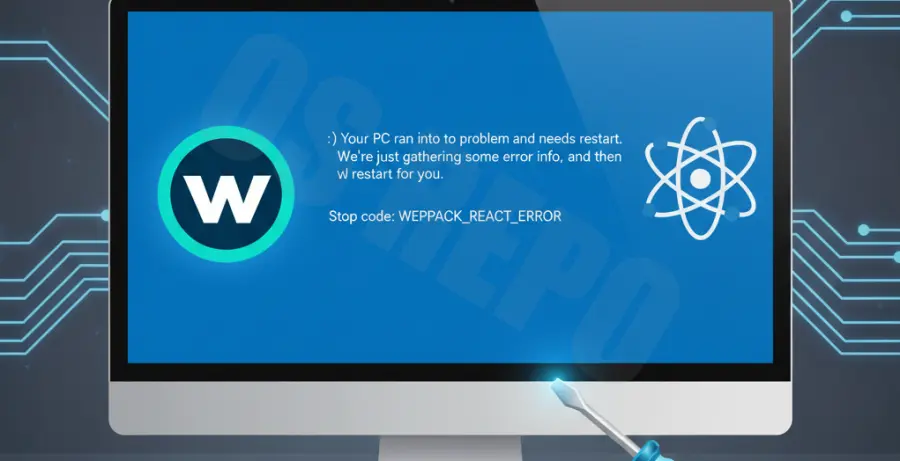
Additionally, outdated Node.js versions or conflicting network drivers can clash with the Webpack WebSocket connection used for Hot Module Replacement (HMR), resulting in the “IRQL_NOT_LESS_OR_EQUAL” error.
Alternative Methods
If adjusting the watch options does not resolve the BSOD, the issue may lie with your environment configuration or hardware acceleration. Refer to the table below for additional troubleshooting steps.
| Method | Action | Expected Result |
|---|---|---|
| Update Node.js | Install the latest LTS version of Node.js. | Resolves known memory leaks in the V8 engine. |
| Clear Cache | Delete node_modules and package-lock.json then reinstall. |
Removes corrupted dependencies that might trigger crashes. |
| Increase Virtual Memory | Adjust Windows Page File size in System Settings. | Prevents BSODs caused by “Out of Memory” kernel panics. |
| Disable Hardware Acceleration | Disable acceleration in your terminal (e.g., VS Code or CMD). | Prevents GPU driver conflicts during heavy builds. |
Lastly, ensure your network drivers are updated. Webpack Dev Server relies heavily on local socket connections, and faulty network stack drivers are a frequent culprit for development-time system crashes.