| Issue | iPhone 16 Pro WiFi Disconnecting Randomly |
|---|---|
| Common Causes | iOS 18 Firmware Bugs, IP Address Conflicts, WPA3 Incompatibility |
| Primary Solution | Reset Network Settings & Disable Private WiFi Address |
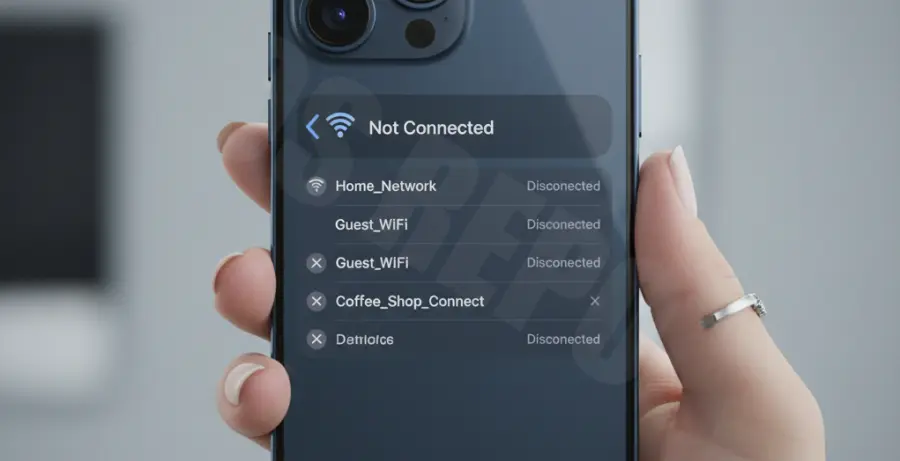
What is the iPhone 16 Pro WiFi Disconnect Bug?
The iPhone 16 Pro WiFi disconnect bug refers to an issue where the device suddenly loses its wireless internet connection. Users report that the WiFi icon disappears or remains active while data stops flowing entirely.
This problem typically occurs shortly after unboxing the new device or updating to early versions of iOS 18. It often affects users on 5GHz or 6GHz bands, causing frustration during streaming or gaming.
Technical analysis suggests the bug is rooted in how the new A18 Pro chip interacts with specific router protocols. It can also be triggered by software handoff glitches between cellular data and local networks.
Step-by-Step Solutions
1. Toggle Private WiFi Address
Apple’s privacy features can sometimes confuse older routers. Disabling the rotating MAC address feature can stabilize your connection to a trusted home network.
Navigate to Settings > WiFi, tap the “i” next to your network, and toggle off Private WiFi Address.
2. Reset Network Settings
If the disconnects persist, clearing the network cache is the most effective fix. This removes saved passwords and VPN configurations to start fresh.
# Note: This is a manual navigation path
Settings -> General -> Transfer or Reset iPhone -> Reset -> Reset Network Settings
3. Disable WiFi Assist
WiFi Assist automatically switches to cellular data when the WiFi signal is poor. However, it can be over-sensitive on the iPhone 16 Pro, leading to premature disconnects.
Go to Settings > Cellular, scroll to the bottom, and turn off WiFi Assist.
4. Update iOS Firmware
Apple frequently releases “point” updates (like iOS 18.0.1 or 18.1) specifically to target hardware connectivity bugs. Ensure your device is on the latest build.
Check for updates in Settings > General > Software Update.
5. Change Router Security Protocol
Some iPhone 16 Pro models struggle with WPA3/WPA2 mixed mode. Access your router settings and try locking the security protocol to WPA2 (AES) to see if stability improves.