| Cause | Common Reason | Quick Fix |
|---|---|---|
| Blocked Range | Non-empty cells are in the way of the results. | Delete data in the highlighted spill area. |
| Merged Cells | Merged cells exist within the spill range. | Unmerge cells in the destination range. |
| Excel Tables | Dynamic arrays don’t work inside Excel Tables. | Convert Table to Range or move formula outside. |
| Indeterminate Size | The formula output size is unknown. | Check formula logic for volatile functions. |
What is #SPILL! Error?
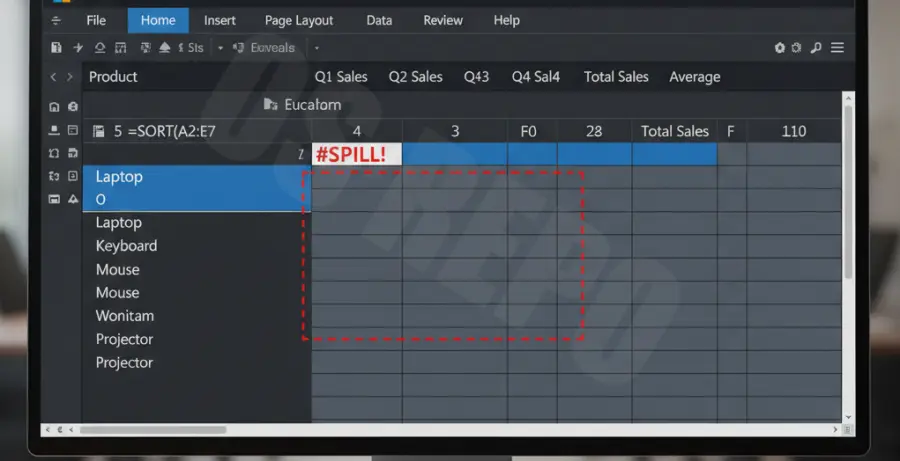
The #SPILL! error occurs in Excel 365 and Excel 2021 when a dynamic array formula attempts to output multiple results, but something is blocking it from filling the necessary cells.
In modern Excel, formulas like SORT, FILTER, and UNIQUE “spill” their results into neighboring cells. If those cells are occupied by text, numbers, or formatting like merged cells, Excel triggers this error to prevent overwriting your data.
Essentially, the “spill range” is the ghost area where the data wants to live. If any cell in that area is not empty, the entire formula fails until the path is cleared.
Step-by-Step Solutions
1. Clear the Blocked Spill Range
The most common cause is simply having data in the way. When you select the cell with the #SPILL! error, Excel will show a dashed border around the intended result area.
Simply navigate to the cells inside that dashed border and delete any existing content. The formula will automatically populate as soon as the space is empty.
# Example of a spilling formula
=SORT(A2:A100)
2. Unmerge Cells in the Range
Excel dynamic arrays do not support merged cells within the spill range. Even if a merged cell is empty, its structure prevents the array from expanding correctly.
Select the entire range where the data should appear, go to the Home tab, and click Merge & Center to unmerge any cells within that block.
3. Move Formulas Out of Excel Tables
Dynamic array formulas are currently not supported inside “Format as Table” objects. If you try to use a spill formula inside an Excel Table column, every cell will return #SPILL!.
To fix this, move your formula to a blank cell outside the table. Alternatively, convert your table back to a standard range by clicking Table Design > Convert to Range.
4. Fix Indeterminate Size Errors
Sometimes Excel cannot determine how large the spill range will be. This often happens when using functions like RANDARRAY or certain volatile combinations that change size constantly.
Ensure your formula has a fixed or predictable output range. If you are using an “Intersection” operator (the @ symbol), try removing it if you intended for the formula to spill, or adding it if you only wanted a single value.
# Correcting a formula to return a single value
=@UNIQUE(A2:A10)