Symptoms & Diagnosis
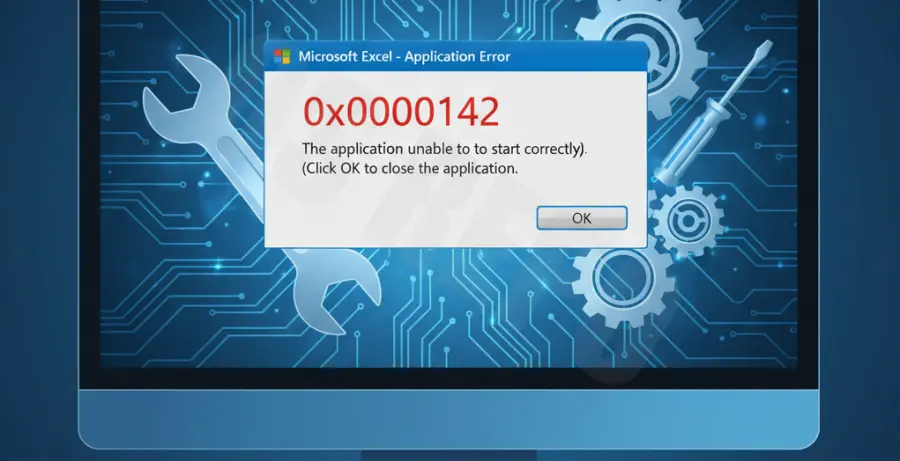
The Excel error 0xc0000142 typically appears when users attempt to launch Microsoft Excel 365 or other Office applications. The error message usually states: “The application was unable to start correctly (0xc0000142). Click OK to close the application.”
This issue is generally caused by a malfunction in the Office Click-to-Run service, corrupted DLL files, or an interrupted update process. It signals that the application cannot load the necessary initialization files required for startup.
Common symptoms include the application freezing on the splash screen followed by the error pop-up, or the error appearing immediately after double-clicking the Excel icon. System-level conflicts with third-party software can also trigger this state.
Troubleshooting Guide
Method 1: Repair Microsoft Office
The most effective way to resolve 0xc0000142 is through the built-in Repair utility. This replaces corrupted core files without deleting your personal data or spreadsheets.
| Repair Type | Description | Best Used For |
|---|---|---|
| Quick Repair | Scans for and replaces missing files locally. | Minor glitches and fast fixes. |
| Online Repair | Reinstalls the entire Office suite from Microsoft servers. | Persistent errors like 0xc0000142. |
To access this, go to Settings > Apps > Installed Apps, find Microsoft 365, click the three dots, and select Modify.
Method 2: Restart Office Click-to-Run Service
If the background service responsible for launching Office apps hangs, the error occurs. You can force-restart this service using the Command Prompt to refresh the initialization process.
sc stop ClickToRunSvc
sc start ClickToRunSvc
Run these commands in an elevated (Administrator) Command Prompt. Once done, try launching Excel again to see if the error persists.
Method 3: Update Office Manually
Sometimes the error is triggered by a pending update that failed to install. Since you cannot open Excel to update it, you can trigger the update through the Windows task scheduler or by running the Office update executable directly.
Ensure your internet connection is stable, as an interrupted download is a frequent culprit for the 0xc0000142 error code in Office 365 environments.
Prevention
To avoid recurring startup errors, ensure that Windows Updates are installed regularly. Frequent OS updates include patches for the .NET Framework, which Office relies on heavily for UI rendering and process management.
Avoid force-closing your computer while Excel is saving or updating. Abrupt power loss or hard resets during an Office background update process is the primary cause of file corruption leading to 0xc0000142.
Finally, monitor third-party add-ins. Disable any legacy plugins that are not explicitly compatible with Excel 365, as they can interfere with the DLL loading sequence during the application’s initialization phase.