| Issue | Common Causes | Quick Fix |
|---|---|---|
| Slack Login Failed on Mac | Corrupted cache, outdated app version, or Keychain conflicts. | Clear Slack cache via Help > Troubleshooting > Reset App Data. |
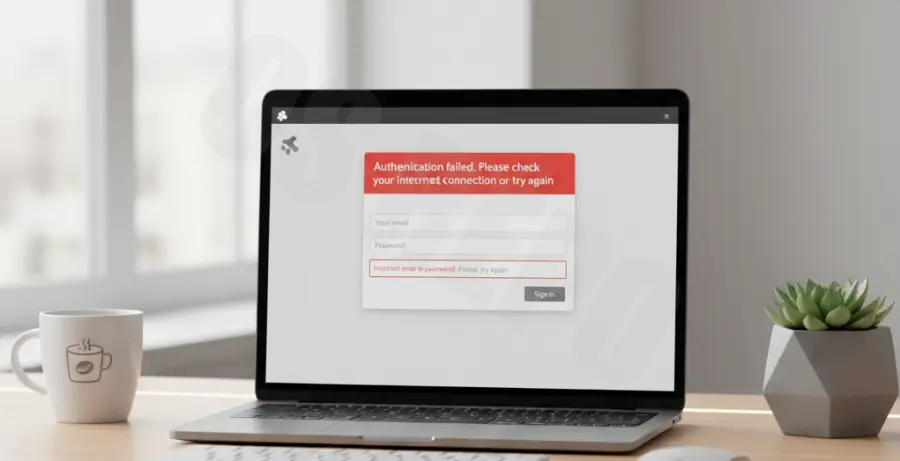
What is Slack Login Failed on Mac?
The “Slack login failed on Mac” error typically occurs when the desktop application is unable to authenticate your credentials with the Slack servers. This can manifest as a spinning loading wheel, an “Invalid Login” message, or a failure to redirect from your web browser back to the desktop app.
On macOS, this issue is often tied to the way the operating system handles cached data and local application states. If the local configuration files become desynchronized or corrupted, the login handshake fails even if your password and workspace URL are correct.
Step-by-Step Solutions
1. Clear Slack App Cache and Reset Data
The most effective way to resolve login loops is to clear the internal cache. Slack stores temporary data that can sometimes block new authentication requests.
- Open the Slack app.
- Click on Help in the top menu bar (next to Window).
- Select Troubleshooting.
- Click on Clear Cache and Restart.
- If the issue persists, go back to the same menu and select Reset App Data.
2. Force Refresh via Terminal
If the app is completely unresponsive or won’t allow you to access the Help menu, you can manually clear the cache folders using the Terminal. This ensures all background processes related to the session are terminated.
rm -rf ~/Library/Application\ Support/Slack/Cache/*
rm -rf ~/Library/Application\ Support/Slack/Service\ Worker/CacheStorage/*
killall Slack
3. Check Workspace Redirection in Browser
Slack often uses “Magic Links” or browser-based SSO (Single Sign-On). If your default browser isn’t passing the token back to the Mac app, the login will fail.
Try switching your default browser to Safari or Chrome temporarily. Ensure that you click “Allow” when the browser asks, “Do you want to allow this page to open ‘Slack’?”
4. Update macOS Keychain Access
Sometimes, macOS stores an outdated or corrupted token in the Keychain. This prevents the Slack app from saving new login credentials securely.
- Open Keychain Access (via Spotlight).
- Search for “Slack”.
- Delete any entries related to Slack tokens or passwords.
- Restart Slack and attempt to log in again.
5. Verify Slack Server Status
Before reinstalling the software, ensure the problem isn’t on Slack’s end. Occasional API outages can prevent Mac users from authenticating correctly across the board.
Visit the official Slack Status page to check for any ongoing incidents regarding “Logins” or “Connectivity.”