Symptoms & Diagnosis
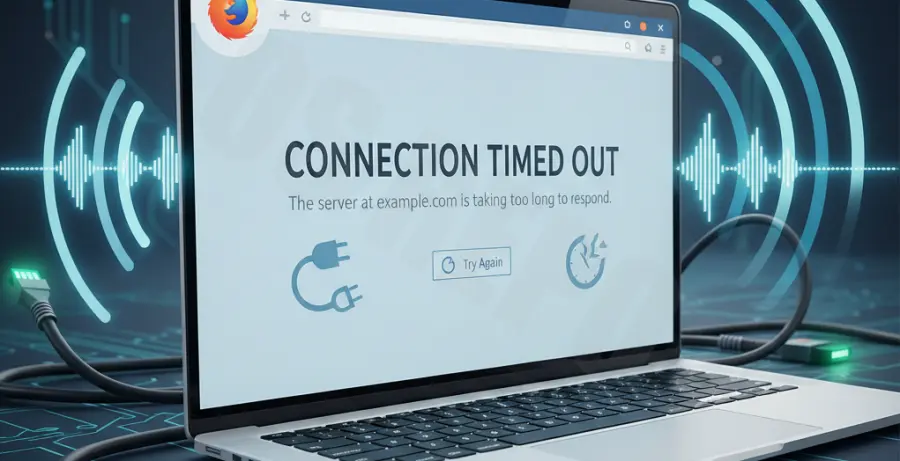
The “Connection Timed Out” error in Firefox occurs when the browser takes too long to receive a response from a website server. In the context of WiFi drops, this usually points to a breakdown in communication between your local hardware and the remote host.
Common symptoms include a spinning loading icon that suddenly stops, the standard Firefox error page stating “The connection has timed out,” and intermittent WiFi signal bars in your system tray. You may also notice that other devices on the same network remain connected while Firefox fails to load resources.
To diagnose the root cause, you should determine if the issue is browser-specific or network-wide. If other browsers like Chrome or Edge work while Firefox hangs, the issue likely resides within Firefox’s internal network timeout configurations or proxy settings.
Troubleshooting Guide
Start by identifying if your network settings are too restrictive or if the browser is timing out before the WiFi signal can stabilize. Follow these steps to resolve the issue.
1. Increase Firefox Network Timeout via about:config
If your WiFi is unstable, Firefox may give up on a connection too early. You can manually increase the timeout duration to allow for temporary signal drops.
| Preference Name | Default Value | Recommended Value |
|---|---|---|
| network.http.connection-timeout | 90 | 300 |
| network.http.response.timeout | 300 | 600 |
To apply these changes, type about:config in your address bar, click “Accept the Risk and Continue,” search for the preference names above, and double-click to edit the values.
2. Clear Firefox Cache and Cookies
Corrupted cache files can interfere with the handshake process during a WiFi reconnect. Clearing this data forces Firefox to establish a fresh connection.
Navigate to Settings > Privacy & Security. Under “Cookies and Site Data,” click “Clear Data.” Ensure “Cached Web Content” is selected and click “Clear.”
3. Disable Proxy and VPN Settings
Proxies can cause significant latency, especially during WiFi drops. Set Firefox to “No Proxy” to ensure a direct connection to your router.
# Check your local network latency to identify drops
ping google.com -t
Open Firefox Settings, scroll to “Network Settings,” and click “Settings.” Select “No Proxy” and restart the browser to see if the timeout error persists.
Prevention
To prevent future connection timeouts, ensure your WiFi hardware is optimized. Keep your router firmware updated and try switching from the 2.4GHz band to the 5GHz band to reduce interference from other devices.
Regularly update Firefox to the latest version. Mozilla frequently releases patches that improve network handling and TCP/IP stack management. Additionally, disable any aggressive “Web Shield” features in your antivirus software, as these often intercept traffic and cause artificial timeouts.
Finally, manage your extensions. Ad-blockers or script-heavy add-ons can increase page load times, making the browser more susceptible to timing out when the WiFi signal fluctuates slightly.