Immediate Fix
If you are currently in a huddle or a call and cannot hear audio, the most likely culprit is an incorrect output device selection within the Slack application itself.
| Step | Action | Details |
|---|---|---|
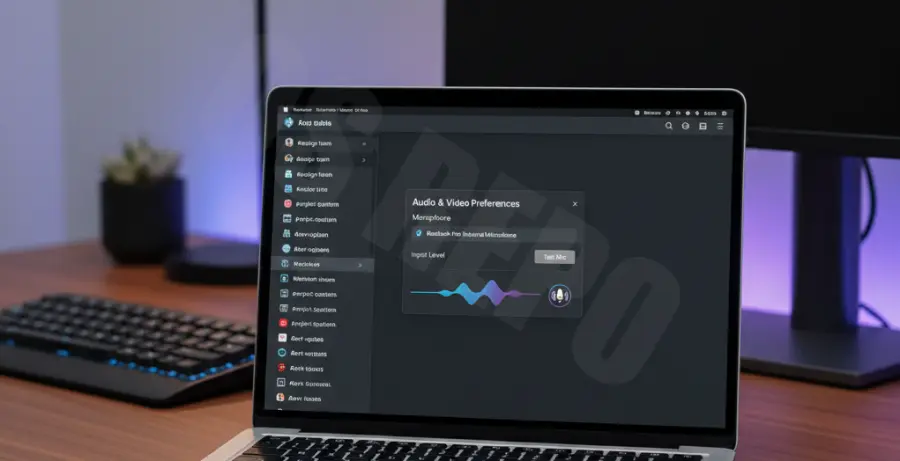
| 1 | Slack Preferences | Click your profile picture > Preferences > Audio & Video. |
| 2 | Check Output | Ensure “Output device” matches your headphones or speakers. |
| 3 | Test Speaker | Click the “Test” button to verify sound production. |
Check your Mac’s system-wide mute status. Press the F12 key to ensure the volume is turned up and that the output hasn’t defaulted to a disconnected Bluetooth device.
Technical Explanation
On macOS, audio processing is handled by a background daemon called coreaudiod. Occasionally, this process becomes unresponsive or enters a state of conflict with third-party applications like Slack.
Slack uses the Electron framework, which creates a bridge between the macOS CoreAudio system and the app’s web-based interface. If this bridge desynchronizes, audio streams will fail even if your hardware is functional.
To force a refresh of the audio subsystem without restarting your Mac, you can execute the following command in the Terminal:
sudo killall coreaudiodThis command terminates the audio process, which macOS will then automatically restart. This often clears stuck buffers and restores sound to active applications immediately.
Alternative Methods
Verify Screen Recording Permissions
In recent macOS versions (Ventura and Sonoma), Slack requires specific permissions to capture and broadcast audio during huddles. Go to System Settings > Privacy & Security > Screen Recording and ensure Slack is toggled ON.
Clear Slack App Cache
Configuration errors can persist in the app’s local storage. To fix this, click the “Help” menu in the top Mac menu bar while Slack is open. Select “Troubleshooting” and then click “Clear Cache and Restart.”
Reset NVRAM/PRAM
If you are using an Intel-based Mac and the issue persists across all apps, you may need to reset the NVRAM. Shut down your Mac, then hold Option+Command+P+R for 20 seconds during startup. Note: This does not apply to Apple Silicon (M1/M2/M3) Macs.
Check Microphone Privacy
If others cannot hear you, navigate to System Settings > Privacy & Security > Microphone. Confirm that the toggle next to Slack is enabled so the app can access your hardware.