| Issue | Main Cause | Quickest Fix |
|---|---|---|
| iPad Pro Bluetooth Spinning Wheel | Software Glitch / Cache Conflict | Force Restart iPad Pro |
| Pairing Failed | Interference / Outdated iPadOS | Reset Network Settings |
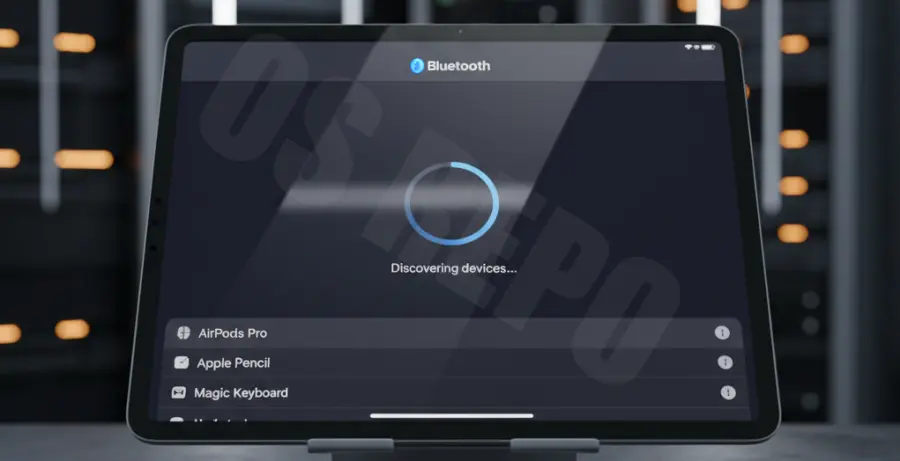
What is the iPad Pro Bluetooth spinning wheel?
The iPad Pro Bluetooth spinning wheel occurs when the Settings app gets stuck in a perpetual discovery loop. Instead of listing available devices, a loading icon spins indefinitely next to the “Devices” header.
This technical glitch usually indicates a hang in the bluetoothd system daemon. It prevents the iPad from establishing a handshake with external peripherals like keyboards, headphones, or the Apple Pencil.
In most cases, the hardware is functional, but the software stack responsible for managing the Bluetooth radio has crashed or encountered a synchronization error.
Step-by-Step Solutions
1. Perform a Force Restart
A standard restart often isn’t enough to clear the Bluetooth cache. A force restart kills all active processes and reinitializes the hardware drivers.
Press and quickly release the Volume Up button. Press and quickly release the Volume Down button. Finally, press and hold the Top button until the Apple logo appears.
2. Reset Network Settings
If the spinning wheel persists, the underlying network configuration files might be corrupted. Note that this will also reset your saved Wi-Fi passwords.
Navigate to Settings > General > Transfer or Reset iPad > Reset > Reset Network Settings.
# System internal logic for network reset
sudo killall -9 bluetoothd
rm -rf /Library/Preferences/com.apple.Bluetooth.plist
3. Toggle Airplane Mode
Toggling Airplane Mode forces the iPad Pro to power down all radios, including Wi-Fi and Bluetooth. This can sometimes “kick” the Bluetooth module back into an active state.
Swipe down from the top-right corner to open Control Center. Tap the Airplane Mode icon, wait 30 seconds, and tap it again to disable it.
4. Check for iPadOS Updates
Apple frequently releases patches for connectivity bugs. If your iPad Pro is running an older version of iPadOS, the Bluetooth stack may contain known vulnerabilities or bugs.
Go to Settings > General > Software Update to ensure your device is running the latest stable build.