| Problem | Primary Cause | Quick Fix |
|---|---|---|
| Slack window blinking/tearing | GPU Hardware Acceleration | Disable Hardware Acceleration in Settings |
| Black frames on external display | Refresh Rate Mismatch | Set monitor to 60Hz or 59Hz |
| Lagging UI during screen share | Electron Cache Bloat | Clear Slack App Cache |
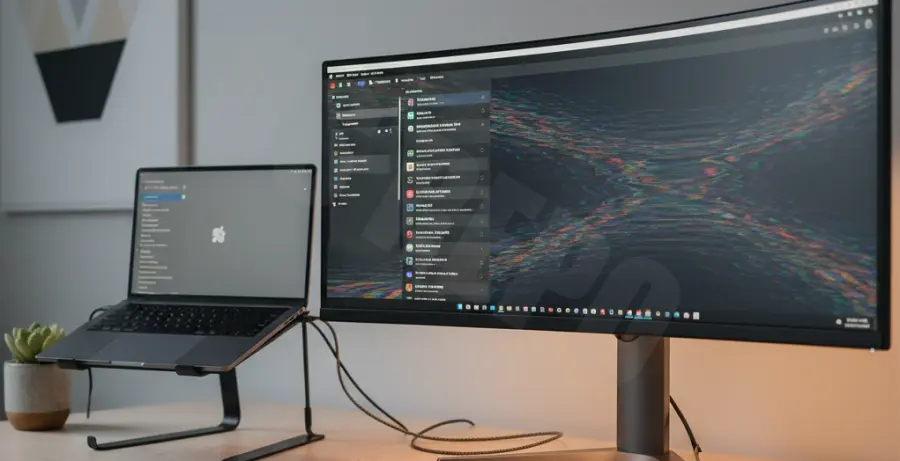
What is Slack Screen Flickering?
Slack screen flickering on external monitors is a visual glitch where the application window blinks, tears, or briefly turns black. This phenomenon usually occurs when Slack is moved from a laptop screen to a secondary display.
The issue is rooted in how Slack, an Electron-based application, interacts with your Graphics Processing Unit (GPU). When the software’s rendering engine clashes with display drivers or refresh rates, it results in the unstable visual output you see.
Step-by-Step Solutions
1. Disable Hardware Acceleration
This is the most effective fix for 90% of users. Hardware acceleration offloads tasks to the GPU, but it can cause flickering on external setups.
- Open Slack.
- Click on your Profile Picture or the Menu icon (three horizontal lines).
- Navigate to Preferences > Advanced.
- Uncheck the box that says “Disable hardware acceleration” (Note: In some versions, you are disabling the use of it).
- Restart Slack completely.
2. Clear the Slack Cache
Corrupted cache files can interfere with the UI rendering. You can manually clear the cache via the terminal for a fresh start.
# For macOS users to clear Slack cache
rm -rf ~/Library/Application\ Support/Slack/Cache
rm -rf ~/Library/Application\ Support/Slack/Service\ Worker/CacheStorage
3. Match Monitor Refresh Rates
If your laptop screen is set to 120Hz and your external monitor is at 60Hz, Slack may struggle to synchronize. Adjust your display settings to ensure both monitors use a standard 60Hz frequency.
On Windows, go to Settings > System > Display > Advanced Display. On macOS, go to System Settings > Displays and select your external monitor to adjust the “Refresh Rate” dropdown.
4. Update Graphics Drivers
Outdated GPU drivers are a common culprit for flickering in Electron apps. Visit the manufacturer’s website (NVIDIA, AMD, or Intel) and download the latest stable release for your specific hardware.
If you are on a Mac, ensure you have installed the latest macOS update, as graphics drivers are bundled with system updates.
5. Use the Browser Version as a Workaround
If the desktop app continues to flicker, try using Slack in a web browser like Chrome or Edge. These browsers handle GPU resources differently and often bypass the flickering issue entirely while you wait for a permanent app patch.