Immediate Fix
If you are facing a “Git Login Failed” error, the fastest way to reset your git credentials via the command line is to force Git to forget the stored helper. This triggers a fresh prompt for your username and password (or Personal Access Token).
Run the following command in your terminal to clear the global credential helper:
git config --global --unset credential.helperNext, attempt to pull or push to your repository. Git will prompt you for your new credentials:
git pull origin main| Operating System | Target Credential Manager | Action Command |
|---|---|---|
| Windows | manager | git config --global credential.helper manager |
| macOS | osxkeychain | git config --global credential.helper osxkeychain |
| Linux | cache / store | git config --global credential.helper 'cache --timeout=3600' |
Technical Explanation
Git uses a mechanism called “Credential Helpers” to save you from typing your password every time you communicate with a remote server. When your login fails, it is usually because the helper is providing an expired token or an outdated password.
When you unset the credential helper, you break the link between Git and the encrypted storage of your OS (like Windows Credential Manager or macOS Keychain). This forces the authentication handshake to start from scratch.
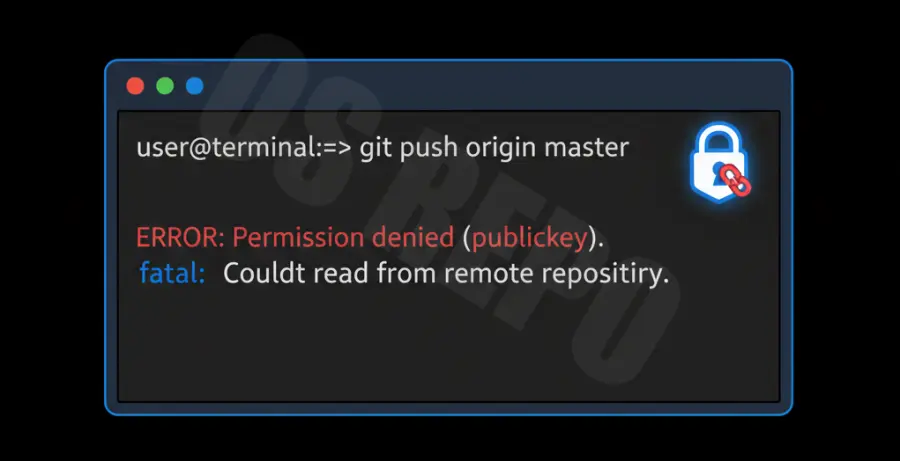
Most modern Git providers, such as GitHub and GitLab, no longer accept standard account passwords for command-line operations. You must use a Personal Access Token (PAT) or SSH keys. If your credentials are rejected even after a reset, ensure you are pasting a valid token rather than your login password.
Alternative Methods
If unsetting the global helper does not work, you can try removing the specific cached credential for a single repository or via your system’s native manager.
1. Update Remote URL with Credentials
You can force Git to use specific credentials by embedding them into the remote URL. This is less secure but effective for immediate troubleshooting:
git remote set-url origin https://USERNAME:[email protected]/username/repository.git2. Windows Credential Manager (CLI)
On Windows, you can use the command line to invoke the helper specifically to “reject” or erase an entry. This targets the stored data without changing your global config:
echo url=https://github.com | git credential-manager-core reject3. macOS Keychain Reset
For Mac users, if the command line reset fails, you can use the `security` command to delete the GitHub entry directly from the keychain:
security delete-internet-password -s github.comBy using these commands, you ensure that Git clears out the stale data causing the authentication loop, allowing you to re-authenticate with updated permissions.