Symptoms & Diagnosis
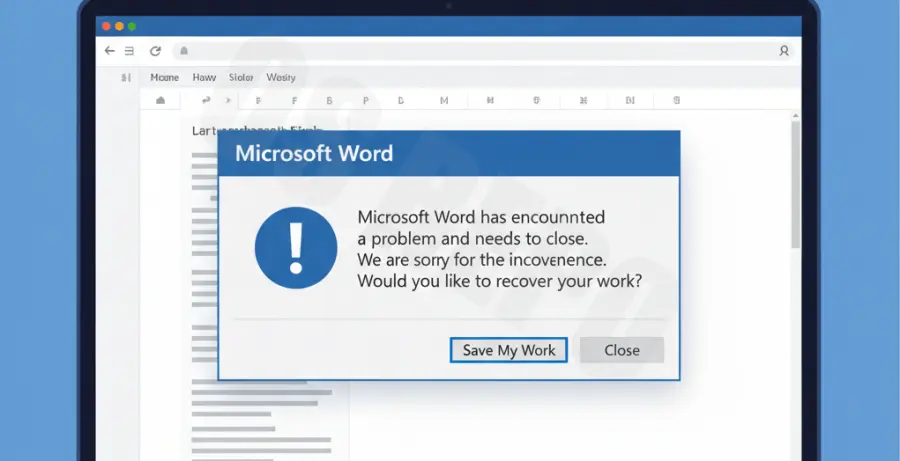
The “Microsoft Word has stopped working” error is a common yet frustrating issue that often results in an immediate Crash to Desktop (CTD). Users typically encounter a pop-up window stating that “A problem caused the program to stop working correctly.”
Identifying the root cause is the first step toward a permanent fix. Most crashes occur due to corrupted templates, incompatible third-party add-ins, or outdated software drivers. Use the diagnostic table below to identify your specific scenario.
| Symptom | Likely Cause | Urgency |
|---|---|---|
| Crash on Startup | Corrupted Normal.dotm template | High |
| Crash when Saving | Permission errors or disk space | Medium |
| Crash after Update | Incompatible Add-ins (COM) | High |
Troubleshooting Guide
To resolve the error, we recommend starting with the least invasive methods first. The most effective diagnostic tool is running Word in Safe Mode to bypass potential conflicts.
Step 1: Launch Word in Safe Mode
Safe Mode allows Word to open without loading add-ins, templates, or custom settings. This helps determine if the core application or an external factor is causing the crash.
winword /safePress the Windows Key + R, type the command above into the Run dialog, and press Enter. If Word opens successfully, a third-party add-in is likely the culprit.
Step 2: Disable COM Add-ins
If Safe Mode works, you must disable your add-ins manually. Go to File > Options > Add-ins. At the bottom, select “COM Add-ins” from the Manage dropdown and click Go. Uncheck all items and restart Word normally.
Step 3: Perform an Online Repair
If the software itself is corrupted, Windows offers a built-in repair utility. Navigate to Control Panel > Programs and Features. Find Microsoft Office, right-click it, and select “Change.” Choose “Online Repair” to ensure all system files are replaced.
Prevention
Maintaining a stable Office environment requires proactive management. Always ensure that your Windows OS and Office suite are fully updated to receive the latest stability patches.
Avoid installing unnecessary third-party plugins, especially those related to PDF conversion or grammar checking, as these are frequent sources of CTD errors. Regularly clear your temporary files and ensure your C: drive has at least 10% free space to allow for temporary document caching.