| Method | Difficulty | Tools Needed |
|---|---|---|
| Manual OTA Trigger | Easy | Wi-Fi Connection |
| Samsung Smart Switch | Moderate | PC/Mac, USB-C Cable |
| Recovery Mode Partition | Advanced | Physical Buttons |
| ADB Sideload | Expert | Android SDK, PC |
What is Force Updating the Galaxy S25 Ultra?
Forcing an update on the Galaxy S25 Ultra involves manually triggering the installation of One UI firmware when the automatic Over-the-Air (OTA) system fails. This typically occurs due to regional rollout delays, server congestion, or software glitches.
When a Galaxy S25 Ultra update fails, the device may get stuck on an older security patch. By using manual override methods, you bypass the standard waiting period and ensure your device has the latest security features and performance optimizations.
Step-by-Step Solutions
Method 1: The Manual Settings Trigger
Before trying complex tools, try to “nudge” the Samsung servers. Ensure your battery is above 50% and you are connected to a stable Wi-Fi network.
Go to Settings > Software update > Download and install. If it says “Your software is up to date” but you know a version is missing, toggle your Date and Time settings forward by 24 hours and try again.
Method 2: Using Samsung Smart Switch (Recommended)
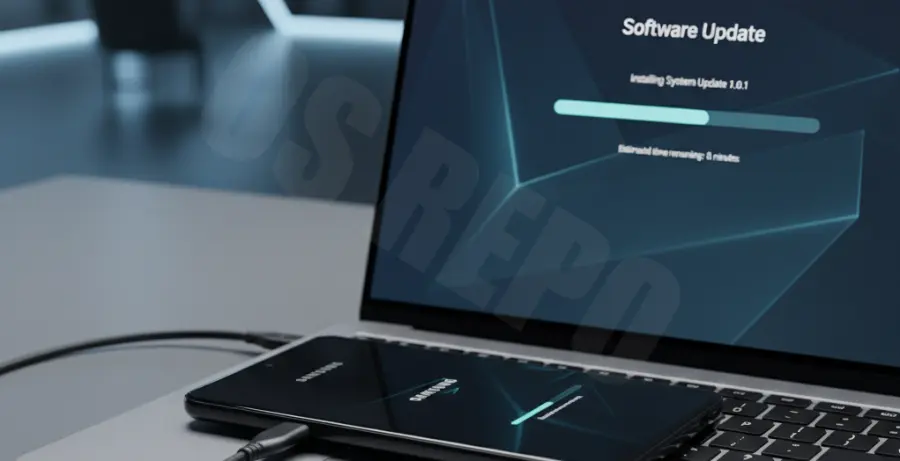
If the phone itself won’t pull the update, the desktop version of Smart Switch often can. This is the most reliable way to fix a “Galaxy S25 Ultra Update Failed” error.
1. Download and install Smart Switch on your PC or Mac.
2. Connect your S25 Ultra via a high-quality USB-C cable.
3. Open the app; if an update is available, a “Update” button will appear under your device name.
4. Click Update and follow the on-screen prompts. Do not disconnect the cable during this process.
Method 3: Clear System Cache Partition
Sometimes, corrupted temporary files prevent the update from initializing. Clearing the cache partition does not delete your personal data.
1. Power off your device.
2. Connect it to a PC via USB (required for newer One UI versions).
3. Press and hold Volume Up + Power until the Samsung logo appears.
4. Use volume keys to navigate to Wipe Cache Partition and press Power to select.
5. Reboot the device and try the update again through Settings.
Method 4: Force Update via ADB Sideload
For users who have downloaded the official firmware (.zip) and want to push it manually, ADB is the professional choice. This requires the Android SDK Platform-Tools on your computer.
Enable Developer Options and USB Debugging on your S25 Ultra. Then, use the following command structure in your terminal:
# Ensure your device is recognized
adb devices

# Reboot into recovery mode
adb reboot recovery

# Once in recovery, select 'Apply update from ADB' and run:
adb sideload update.zip
Always ensure the firmware build matches your specific model number (e.g., SM-S938B) to avoid bricking the device.