| Issue Symptom | Primary Solution |
|---|---|
| Bluetooth Toggle Greyed Out | Force Restart (Hard Reset) |
| Spinning Wheel / Non-responsive | Reset Network Settings |
| Pairing Failed / Connectivity Error | Update iPadOS via Finder/iTunes |
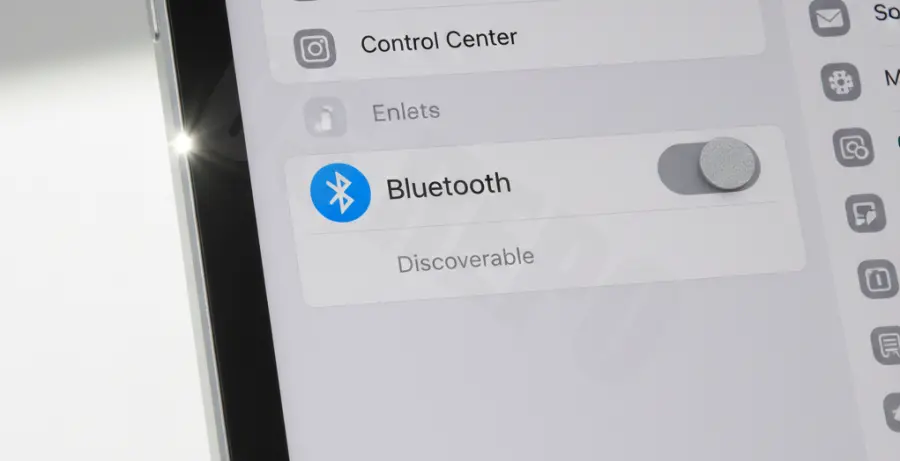
What is iPad Pro Bluetooth settings greyed out?
The “iPad Pro Bluetooth settings greyed out” issue refers to a state where the Bluetooth toggle switch in the Settings app is dimmed and cannot be interacted with. This effectively prevents the user from enabling or disabling the wireless protocol.
Technically, this happens when the iPadOS kernel fails to initialize the Bluetooth hardware module. It is often caused by a software “hang” in the Bluetooth daemon or, in rarer cases, a hardware failure of the internal communication chip.
When this occurs, you may also see “Unavailable” listed next to Bluetooth in the General > About section. This confirms that the software cannot communicate with the physical hardware.
Step-by-Step Solutions
1. Force Restart your iPad Pro
A standard restart may not clear the hardware state. A force restart cuts power to the components and re-initializes the drivers.
Quickly press and release the Volume Up button. Quickly press and release the Volume Down button. Press and hold the Top (Power) button until the Apple logo appears on the screen.
2. Reset Network Settings
This clears all network-related caches, including Wi-Fi passwords and Bluetooth pairing records. It is the most common fix for persistent greyed-out toggles.
Navigate to Settings > General > Transfer or Reset iPad > Reset > Reset Network Settings. Your iPad will reboot automatically.
# If you are a developer using a Mac to check device logs for Bluetooth errors:
ideviceinfo | grep -i "BluetoothAddress"
# If the output is empty or null, the hardware module is not being detected.
3. Toggle Airplane Mode
Sometimes the radio management system gets stuck. Toggling Airplane Mode can force a refresh of all wireless radios (Cellular, Wi-Fi, and Bluetooth).
Open the Control Center and tap the Airplane icon. Wait 30 seconds, then tap it again to turn it off. Check the Bluetooth menu immediately after.
4. Update iPadOS
If the Bluetooth settings remain greyed out, it may be a known bug in your current firmware version. Apple frequently releases patches for connectivity issues.
Go to Settings > General > Software Update. If your Wi-Fi is also greyed out (which often happens simultaneously), connect your iPad to a Mac or PC and update via Finder or iTunes.