| Error Code | Common Cause | Primary Solution |
|---|---|---|
| 0x80070017 | Corrupt Update Files / CRC Error | Reset Windows Update Components |
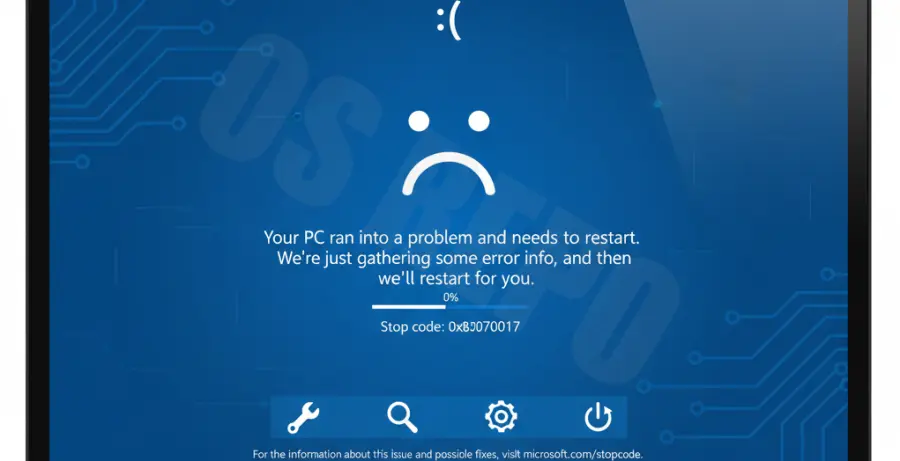
What is Windows 10 Error 0x80070017?
Windows 10 Error 0x80070017 is a common issue that occurs during the Windows Update process or while installing a fresh copy of the OS. It is technically classified as a “CRC” (Cyclic Redundancy Check) error.
This error essentially means that the files being copied from the installation media or downloaded from the update servers are not reaching your hard drive intact. The system detects that the data is corrupted and halts the process.
Common triggers include bad sectors on the hard drive, faulty RAM, corrupted system files, or a poorly burned ISO file on a USB or DVD.
Step-by-Step Solutions
1. Run the Windows Update Troubleshooter
Before attempting complex manual fixes, use the built-in diagnostic tool provided by Microsoft. This tool can automatically detect and resolve common update database corruption issues.
Go to Settings > Update & Security > Troubleshoot > Additional troubleshooters. Select Windows Update and click Run the troubleshooter. Follow the on-screen instructions and restart your PC.
2. Reset Windows Update Components
If the update cache is corrupted, you need to clear the SoftwareDistribution folder. This forces Windows to redownload the update files from scratch.
Open the Command Prompt as an Administrator and run the following commands one by one:
net stop wuauserv
net stop cryptSvc
net stop bits
net stop msiserver
ren C:\Windows\SoftwareDistribution SoftwareDistribution.old
ren C:\Windows\System32\catroot2 catroot2.old
net start wuauserv
net start cryptSvc
net start bits
net start msiserver
3. Run SFC and DISM Scans
Corruption within the system image itself can trigger error 0x80070017. You can use the System File Checker (SFC) and Deployment Image Servicing and Management (DISM) tools to repair these files.
Run the following command in an Admin Command Prompt to fix the system image:
DISM /Online /Cleanup-Image /RestoreHealthOnce that finishes, run the system file repair tool:
sfc /scannow4. Perform a Clean Boot
Third-party antivirus software or background services can interfere with the Windows Update process. A clean boot starts Windows with a minimal set of drivers and programs.
Type msconfig in the Windows search bar and press Enter. Under the Services tab, check Hide all Microsoft services and then click Disable all. Go to the Startup tab, open Task Manager, and disable all startup items. Restart and try the update again.
5. Use the Media Creation Tool
If you are seeing this error while trying to upgrade Windows, the specific update package might be failing. Using the Windows 10 Media Creation Tool to “Upgrade this PC now” often bypasses the standard update errors.
Download the tool from the official Microsoft website. Run it and select Upgrade this PC now. This will reinstall Windows files while keeping your apps and data safe, effectively fixing any underlying corruption.