| Issue | Primary Cause | Fastest Fix |
|---|---|---|
| WiFi Drops / High Ping | 2.4GHz Radio Interference | Switch to 5GHz WiFi Band |
| Connection Timeout | AMD Link Discovery Services | Disable “AMD Link” in Settings |
| Signal Weakness | Driver Conflict / Power Management | Disable ULPS or Roll Back Driver |
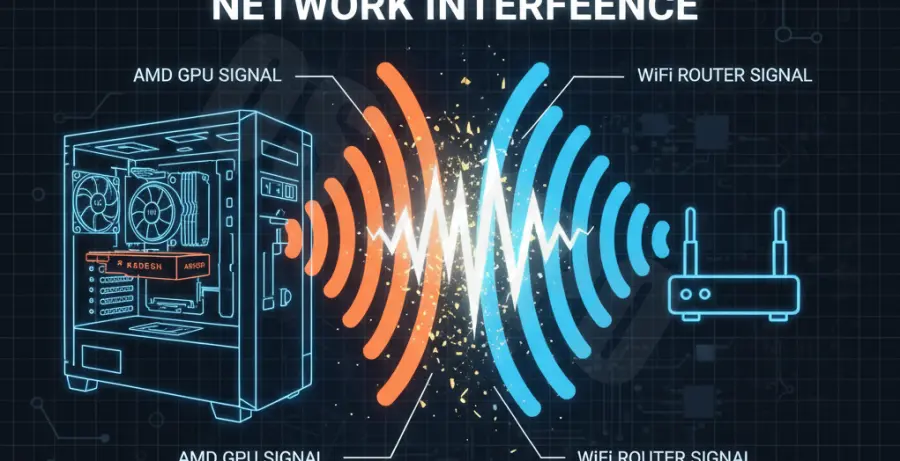
What is AMD Software WiFi Signal Interference?
AMD software WiFi signal interference refers to a technical phenomenon where the AMD Radeon Software (Adrenalin Edition) causes network instability. Users typically experience sudden disconnects, high latency, or dropped packets during gaming sessions.
This issue often stems from the “AMD Link” feature. This tool constantly scans the local network to discover mobile devices for streaming. On some systems, this aggressive scanning disrupts the wireless adapter’s ability to maintain a stable connection with the router.
Additionally, hardware electromagnetic interference (EMI) can play a role. High-performance GPUs operating under load can occasionally emit frequencies that interfere with 2.4GHz wireless bands if the PC case is poorly shielded or the WiFi antenna is too close to the GPU ports.
Step-by-Step Solutions
1. Disable AMD Link and Discovery
The most common culprit is the background discovery service. Turning this off stops the software from constant network polling.
- Open AMD Software: Adrenalin Edition.
- Click the Settings (Gear Icon) in the top right.
- Navigate to the AMD Link tab.
- Toggle AMD Link to “Disabled.”
- Restart your PC to ensure the background service stops.
2. Switch to the 5GHz Frequency Band
Most interference occurs on the 2.4GHz band because it is crowded and shares frequencies with Bluetooth and GPU-emitted EMI. Switching your router and PC to 5GHz or 6GHz (WiFi 6E) usually bypasses the interference entirely.
3. Reset Network Stack
Sometimes the interference leaves the Windows network stack in an unstable state. You can reset these configurations using the command prompt to clear the cache.
netsh winsock reset
netsh int ip reset
ipconfig /release
ipconfig /renew
ipconfig /flushdns
4. Disable Power Management for Wireless Adapters
AMD software profiles can sometimes trigger Windows to “save power” on the WiFi card during high GPU load. This causes the signal to drop.
- Right-click the Start button and select Device Manager.
- Expand Network adapters.
- Right-click your WiFi card and select Properties.
- Go to the Power Management tab.
- Uncheck “Allow the computer to turn off this device to save power.”
5. Roll Back or Clean Install Drivers
If the interference started after a specific Adrenalin update, use the Display Driver Uninstaller (DDU) to wipe the current driver and install a “Minimal Install” version. This version excludes the streaming and networking features that cause signal conflicts.