| Issue | Likely Cause | Quick Fix |
|---|---|---|
| Persistent Warning | Post-update indexing or Beta bug | Restart and update all Play Store apps |
| Device actually hot | Background CPU throttling | Toggle Airplane mode or limit 5G |
| False Alarm | System sensor glitch | Wipe System Cache (Recovery Mode) |
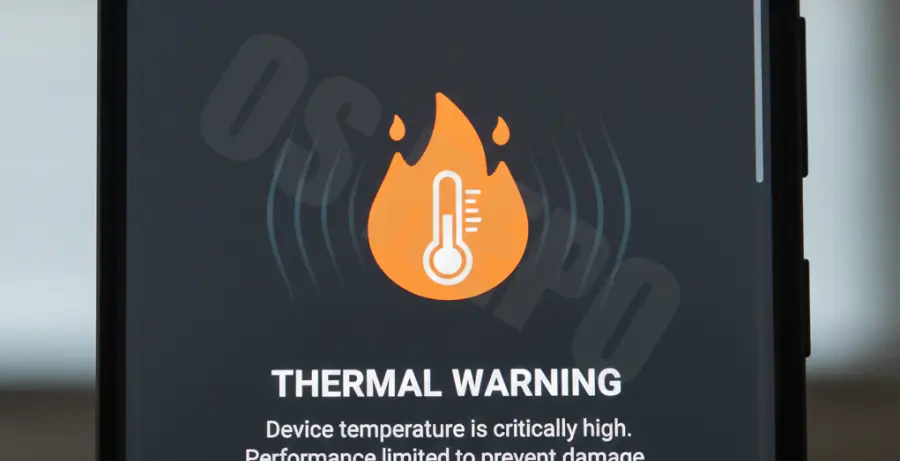
What is the Android 15 Overheating Warning?
The Android 15 overheating warning is a system-level safety feature designed to protect your device’s internal components. When internal thermal sensors detect temperatures exceeding safe operating limits, the OS triggers a notification to prevent hardware damage.
In the context of Android 15, many users report this warning popping up even when the device feels cool to the touch. This suggests a calibration error in the early builds of the OS or high CPU usage during the initial background indexing phase that follows a major update.
This warning often limits device functionality. It may dim the screen brightness, disable the camera flash, slow down charging speeds, or even force-close resource-intensive applications until the temperature drops.
Step-by-Step Solutions
1. Check Thermal Status via ADB
If the warning appears to be a false positive, you can check what the system thinks the temperature is using Android Debug Bridge (ADB). This helps verify if a specific hardware sensor is malfunctioning.
adb shell dumpsys thermalserviceLook for the “Thermal Status” section in the output. If it shows “SKIN” or “CPU” temperatures that are clearly inaccurate, a factory reset or a rollback to Android 14 might be necessary if you are on a Beta build.
2. Force Stop Malfunctioning Apps
Android 15 introduces new background execution limits. However, some apps not yet optimized for the new API may loop in the background, causing the CPU to spike. Navigate to Settings > Apps > See all apps and identify apps with high battery usage.
Select the suspicious app and tap Force Stop. If the warning disappears shortly after, you have found the culprit. Common offenders include social media apps and high-definition widgets.
3. Update System Intelligence and Play Services
Many system-level thermal triggers are controlled by Google Play Services. Ensure your core components are updated to the latest version compatible with Android 15.
Go to Settings > Security & Privacy > System & Updates. Check for both “Google Play system update” and “Security update.” Install any pending patches and restart your device immediately.
4. Disable “Allow 2G” and Limit 5G
Network modem strain is a leading cause of overheating in early Android 15 builds. If you are in an area with poor signal, the modem works harder, generating significant heat near the SIM tray.
Go to Settings > Network & Internet > SIMs. Try switching the “Preferred network type” to LTE instead of 5G. Additionally, disabling “Allow 2G” under the same menu can sometimes stabilize the modem’s power consumption.
5. Reset Adaptive Battery Settings
Sometimes the “Adaptive Battery” feature becomes corrupted during the transition to Android 15. This can lead to improper power distribution. Resetting the app preferences can often recalibrate these thermal triggers.
Go to Settings > System > Reset options > Reset app preferences. Note that this will not delete your data, but it will reset notification settings and background permissions for all apps, potentially clearing the persistent thermal bug.