Symptoms & Diagnosis
Android 15 introduces significant updates to the display pipeline, which can occasionally result in screen flickering on specific hardware configurations. Users typically report rapid brightness shifts, intermittent flashing during UI transitions, or a “stuttering” effect when the refresh rate changes.
To diagnose the issue, determine if the flicker occurs globally or only within specific apps. If the flickering persists across the entire OS, it is likely a rendering conflict or a synchronization error between the GPU and the display panel.
Troubleshooting Guide
Most Android 15 display issues can be resolved by adjusting hidden system parameters within the Developer Options menu. This menu allows you to override default rendering behaviors that may be causing the instability.
Step 1: Enable Developer Options
Navigate to Settings > About Phone. Scroll down to “Build Number” and tap it seven times until you see a message stating that developer mode is active. You can then find the menu under Settings > System > Developer options.
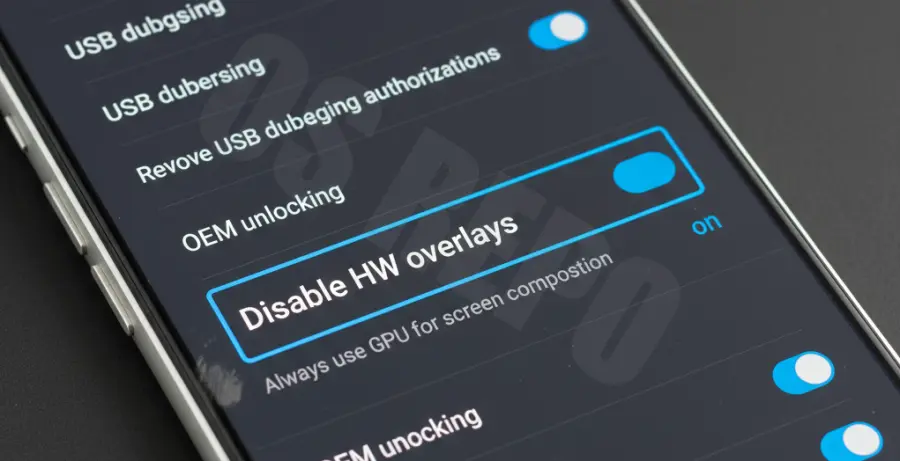
Step 2: Disable HW Overlays
The “Disable HW overlays” toggle is the most effective fix for Android 15 flickering. When enabled, the system uses the GPU for screen compositing instead of the hardware overlay, which often bypasses the bug causing the flicker.
| Developer Setting | Recommended Action | Impact |
|---|---|---|
| Disable HW Overlays | Toggle ON | Forces GPU for screen compositing. |
| Force Peak Refresh Rate | Toggle ON | Prevents flickering caused by VRR switching. |
| Graphics Driver Preferences | System Default | Ensures stable driver usage for apps. |
Step 3: Force Peak Refresh Rate
Android 15 uses Variable Refresh Rate (VRR) to save battery. If the flickering happens when the screen slows down to 1Hz or 10Hz, enabling “Force peak refresh rate” will keep the display at its maximum frequency (e.g., 120Hz), eliminating the flicker at the cost of some battery life.
Advanced Debugging via ADB
If the UI is too unstable to navigate, you can use the Android Debug Bridge (ADB) to check the display state and identify if the surface flinger is reporting errors.
# Check display service status
adb shell dumpsys display | grep "mScreenState"

# Check for SurfaceFlinger errors
adb logcat | grep SurfaceFlinger
Prevention
To prevent screen flickering on Android 15, avoid using experimental Beta builds on your primary device. Always ensure that “Show surface updates” is turned OFF in Developer Options, as this feature intentionally flashes the screen whenever a window updates.
Regularly check for system updates under Settings > System > System update. Google frequently releases “Quick Fix” patches shortly after major OS updates to address display driver incompatibilities found in the initial rollout.