Symptoms & Diagnosis
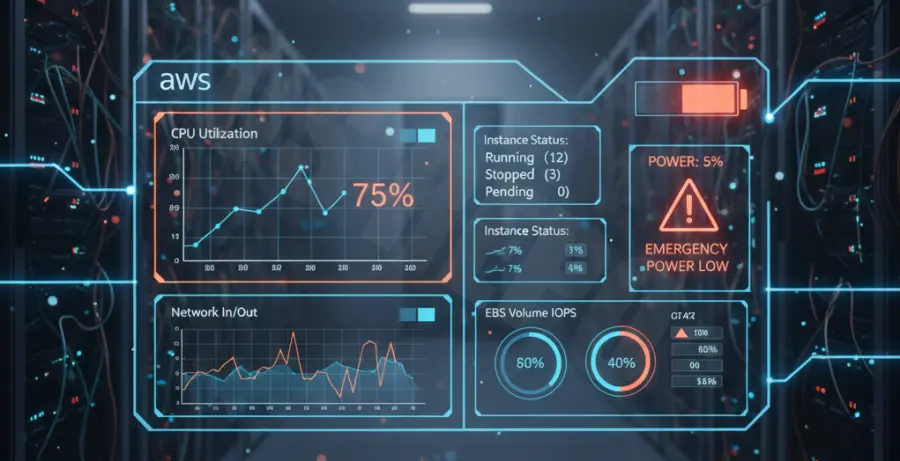
In the AWS ecosystem, “resource depletion” often feels like a battery draining fast. Your EC2 instance might start responsive but quickly becomes sluggish or unreachable as system resources hit their ceiling.
The primary indicators of cloud resource exhaustion include high CPU steal time, disk I/O wait, and the exhaustion of CPU burst credits for T-series instances. When these credits hit zero, your performance is throttled to the baseline, mimicking a hardware failure.
Common symptoms include SSH connection timeouts, 504 Gateway Timeout errors on your load balancer, and application logs showing “Out of Memory” (OOM) errors. Monitoring these via Amazon CloudWatch is the first step in a successful diagnosis.
Troubleshooting Guide
To identify the root cause, you must look at both the internal OS metrics and the external AWS infrastructure metrics. Use the table below to map symptoms to specific resource bottlenecks.
| Metric | Symptom | Likely Cause |
|---|---|---|
| CPUCreditBalance | Sudden performance drop | T-series burst credit exhaustion |
| CPUUtilization | Consistent 100% usage | Runaway processes or undersized instance |
| DiskReadBytes/WriteBytes | High I/O Wait | EBS throughput or IOPS limits reached |
| MemoryUsage | OOM Killer active | Memory leaks or high-concurrency spikes |
Connect to your instance via SSH or Systems Manager (SSM) and run the following commands to inspect real-time resource consumption.
# Check top consuming processes (CPU and Memory)
top -b -n 1 | head -n 20

# Check available memory and swap usage
free -m

# Check disk space utilization
df -h

# Check for OOM (Out of Memory) events in system logs
dmesg | grep -i "out of memory"
If you suspect EBS throttling, use the AWS CLI to check for volume performance issues that might be slowing down your application’s I/O operations.
# Check volume status via AWS CLI
aws ec2 describe-volumes --volume-ids vol-0123456789abcdef0
Prevention
Preventing resource depletion requires a proactive “Right-Sizing” strategy. Avoid using T-series instances for sustained high-workload applications unless you enable “T2/T3 Unlimited” mode to handle unexpected spikes.
Implement Auto Scaling groups to automatically add capacity when resource utilization crosses a specific threshold. This ensures that a single instance doesn’t carry the entire load until it “drains” its available resources.
Set up CloudWatch Alarms to notify your team before resources are fully depleted. For example, trigger an alert when `CPUCreditBalance` falls below 50 or when `MemoryUtilization` exceeds 80% for more than five minutes.
Finally, consider upgrading to instance types with dedicated EBS bandwidth and higher networking performance if your application consistently hits the ceiling of general-purpose instances.