Immediate Fix: Update AWS PV Drivers and iSCSI Settings
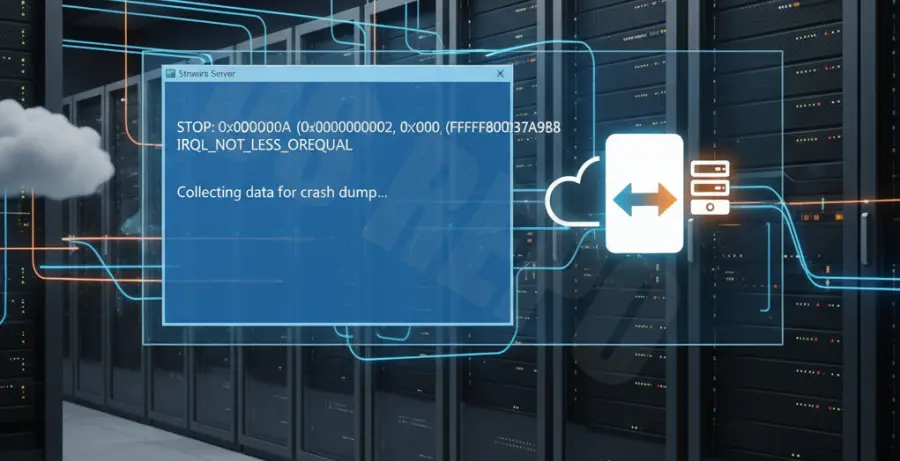
The primary cause of a Windows Blue Screen of Death (BSOD) when using AWS Storage Gateway is a conflict between the AWS Paravirtual (PV) drivers and the iSCSI initiator. This typically results in a DPC_WATCHDOG_VIOLATION or SYSTEM_THREAD_EXCEPTION_NOT_HANDLED error.
To resolve this immediately, you must update your drivers to the latest version to ensure compatibility with the gateway’s virtualized SCSI interface. Run the following command in PowerShell to verify your current driver status:
# Check the version of installed AWS PV Drivers
Get-WmiObject Win32_PnPSignedDriver | Where-Object {$_.DeviceName -like "*AWS PV*"} | Select-Object DeviceName, DriverVersion
After verifying, download the latest AWS PV Driver package from the official AWS documentation and perform a clean installation. Refer to the table below for the required configuration states:
| Component | Required Action | Impact |
|---|---|---|
| AWS PV Drivers | Upgrade to latest MSI version | Resolves kernel-level memory conflicts |
| iSCSI Initiator | Set service to “Automatic” | Prevents boot-time connection timeouts |
| Windows Update | Install latest KB patches | Fixes known iSCSI stack vulnerabilities |
Technical Explanation
The BSOD occurs because the Windows kernel expects a response from the storage subsystem within a specific timeframe. When using AWS Storage Gateway (particularly Volume or Tape Gateway), the latency inherent in S3-backed operations can sometimes exceed the default Windows iSCSI timeout.
If the AWS PV driver fails to handle these delayed I/O requests gracefully, the operating system assumes a hardware failure has occurred. This triggers a bug check to prevent file system corruption, leading to the blue screen.
Alternative Methods
Modify Disk Timeout Registry Keys
If updating drivers does not stop the crashes, you likely need to increase the period Windows waits for the iSCSI target to respond. Increasing the MaxRequestHoldTime allows the system to tolerate temporary network fluctuations between the Windows host and the Storage Gateway appliance.
# Increase iSCSI MaxRequestHoldTime to 120 seconds
New-ItemProperty -Path "HKLM:\SYSTEM\CurrentControlSet\Control\Class\{4d36e97b-e325-11ce-bfc1-08002be10318}\0000\Parameters" -Name "MaxRequestHoldTime" -Value 120 -PropertyType DWord -Force
Verify Storage Gateway Software Version
In some cases, the issue resides on the Gateway VM itself rather than the Windows client. Ensure your Storage Gateway is running the latest software update via the AWS Management Console. Navigate to the “Maintenance” tab for your gateway and check for any “Update Available” notifications.
Running an outdated Gateway VM can lead to malformed iSCSI packets that the Windows driver cannot parse, directly resulting in a system crash.