| Issue | Primary Cause | Recommended Fix |
|---|---|---|
| Laggy BIOS Menu | Incorrect XMP/DOCP Profile | Reset CMOS or Disable XMP |
| Slow Boot (POST) | Memory Training Latency | Enable “Memory Context Restore” |
| System Hanging | Outdated Firmware | Flash Latest BIOS Version |
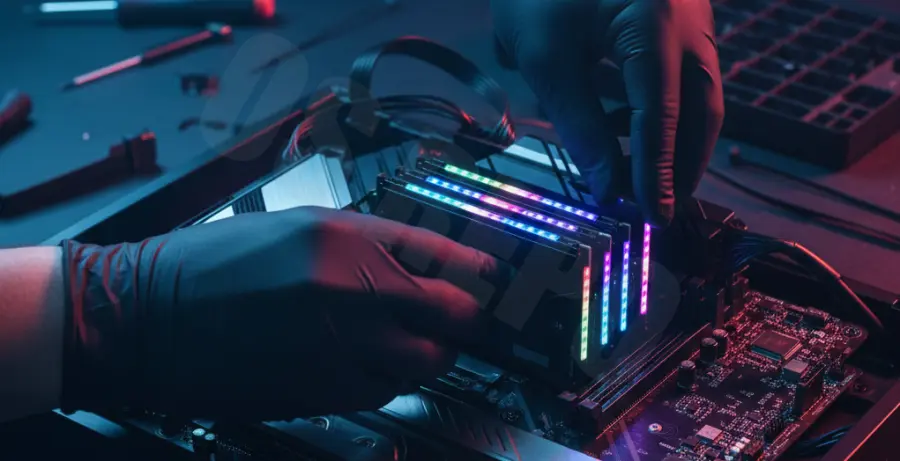
What is BIOS Slow Performance After a RAM Upgrade?
BIOS slow performance refers to a noticeable lag in the UEFI/BIOS interface or an extended Power-On Self-Test (POST) duration after installing new memory modules. Users often experience delayed keystroke responses or “freezing” within the configuration menus.
This occurs because the motherboard’s chipset and CPU must negotiate new timings and voltages with the upgraded hardware. If the previous settings are cached, the system struggles to reconcile the old parameters with the new RAM specifications.
Step-by-Step Solutions
1. Perform a CMOS Reset
The most effective fix for a slow BIOS is clearing the CMOS. This wipes the hardware configuration and forces the motherboard to re-identify the new RAM sticks from scratch.
To do this, power off the PC, remove the silver CR2032 coin battery from the motherboard for 30 seconds, and then reinsert it.
2. Verify RAM Frequency and Timings
If your BIOS is laggy, the auto-detect feature might be struggling with XMP (Extreme Memory Profile). You can check your current memory performance in a Linux environment using this command to ensure the hardware is recognized:
sudo dmidecode --type memory | grep SpeedIf the speeds do not match your RAM’s rating, enter the BIOS and manually set the frequency to the manufacturer’s specification rather than using “Auto.”
3. Toggle Memory Context Restore (DDR5 Systems)
On newer AM5 or Intel platforms, the BIOS may run a “Memory Training” sequence every time you boot, causing massive delays. Look for a setting called “Memory Context Restore” in the Advanced Memory settings and set it to “Enabled.”
4. Update the BIOS Firmware
Motherboard manufacturers frequently release updates to improve RAM compatibility. An outdated BIOS version may not have the microcode necessary to handle high-density or high-speed modules efficiently.
Download the latest stable version from the manufacturer’s website and use the “M-Flash” or “EZ-Flash” utility to update the firmware.
5. Reseat and Test Dimms
Physical installation errors can cause the BIOS to struggle with memory polling. Ensure the sticks are in the correct slots (usually slots 2 and 4 for dual-channel) and are fully clicked into place.