Immediate Fix
The most effective way to stop a Blue Screen of Death (BSOD) when launching Outlook 365 is to disable hardware graphics acceleration and problematic add-ins via Safe Mode. This prevents the application from triggering driver conflicts during initialization.
Follow these steps to stabilize the application immediately:
outlook.exe /safeOnce Outlook is open in Safe Mode, use the following table to perform the necessary cleanup:
| Action Item | Instruction |
|---|---|
| Disable COM Add-ins | Go to File > Options > Add-ins > Manage: COM Add-ins > Go. Uncheck all items. |
| Disable Hardware Acceleration | Go to File > Options > Advanced > Display > Check “Disable hardware graphics acceleration”. |
| Reset View Settings | Run the command: outlook.exe /cleanviews in the Run dialog. |
Technical Explanation
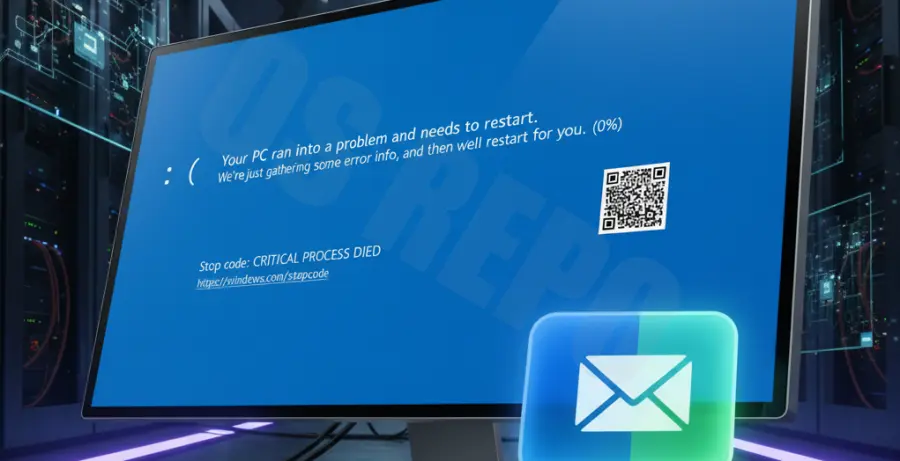
A BSOD occurs because a low-level kernel error is triggered when Outlook 365 requests resources from the system. Unlike a standard app crash, Outlook is interacting with a driver that fails to handle the request, leading to a system-wide halt.
Common stop codes associated with this issue include VIDEO_TDR_FAILURE or SYSTEM_SERVICE_EXCEPTION. These are typically caused by outdated graphics drivers or third-party security software that hooks into the Outlook process inappropriately.
When Outlook launches, it attempts to render the user interface using your GPU. If the driver is corrupted, the instruction pointer hits an invalid memory address, and Windows shuts down to prevent hardware damage.
Alternative Methods
1. Repair the Office Installation
If binary files within the Office suite are corrupted, they may cause memory management errors. A “Quick Repair” can often re-register the necessary DLL files without a full reinstallation.
Navigate to Control Panel > Programs and Features. Right-click Microsoft 365, select Change, and then choose Quick Repair. If the issue persists, try the Online Repair option.
2. Create a New Outlook Profile
A corrupted Outlook Profile (.pst or .ost) can trigger a system crash during the synchronization phase. Creating a fresh profile isolates the software from corrupted local data.
Go to Control Panel > Mail > Show Profiles. Click Add, name the new profile, and configure your email account. Set the new profile as the default and attempt to launch Outlook.
3. Update Display Drivers
Since hardware acceleration is a primary culprit, updating your GPU drivers is essential. Visit the manufacturer’s website (Intel, NVIDIA, or AMD) to download the latest WHQL-certified drivers for your specific hardware.