| Action | Command |
|---|---|
| Main Command | sudo dpkg-reconfigure gdm3 |
| Install LightDM | sudo apt install lightdm |
| Install SDDM | sudo apt install sddm |
| Restart GUI | sudo systemctl restart display-manager |
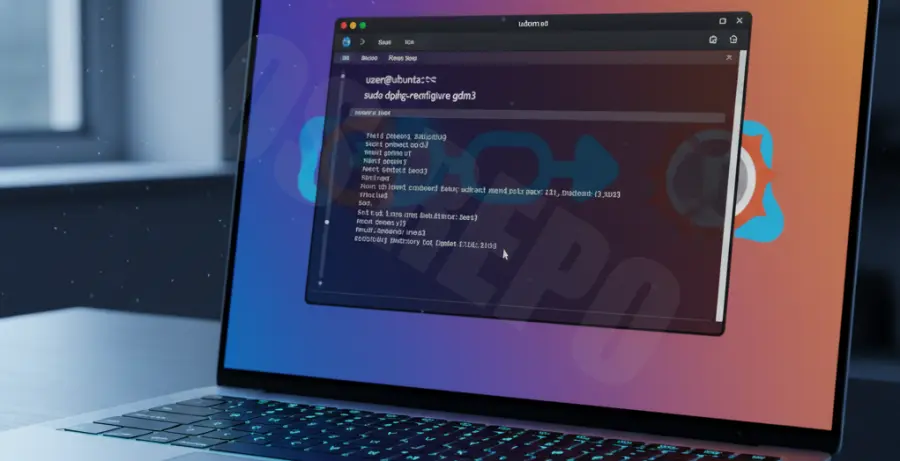
What is the Change Display Manager Ubuntu 24.04 Command?
The change display manager Ubuntu 24.04 command allows users to switch between different graphical login interfaces. In Ubuntu, the default display manager is GDM3 (GNOME Display Manager).
A display manager is the program that provides the login screen and starts the GUI session. Sometimes, users encounter an “Ubuntu 24.04 Login Failed” loop or a black screen. Switching to a lighter manager like LightDM or SDDM often resolves these graphical driver conflicts.
Step-by-Step Solutions to Change Display Manager
Step 1: Access the Terminal
If you are stuck at a failed login screen, press Ctrl + Alt + F3 to enter the TTY (Teletype) console. Log in with your username and password to run commands.
Step 2: Install an Alternative Display Manager
Before switching, you must have another display manager installed. You can choose between LightDM (lightweight) or SDDM (KDE default).
# To install LightDM
sudo apt update
sudo apt install lightdm

# Or to install SDDM
sudo apt install sddm
Step 3: Execute the Reconfigure Command
Use the following command to trigger the selection menu. This is the primary “change display manager Ubuntu 24.04 command” used by system administrators.
sudo dpkg-reconfigure gdm3An ncurses interface will appear in your terminal. Use the arrow keys to select your preferred manager (e.g., lightdm) and press Enter.
Step 4: Apply Changes and Reboot
Once you have selected the new manager, you need to restart the display service or reboot the entire system to see the changes.
sudo rebootHow to Switch Back to GDM3
If you wish to return to the default Ubuntu experience, simply run the reconfigure command again and select gdm3 from the list.
sudo dpkg-reconfigure gdm3