Symptoms & Diagnosis
The most common symptom of an account mismatch in Git Bash is the dreaded “403 Forbidden” or “Permission denied” error. This usually happens when you try to push code to a repository belonging to Account B while Git Bash is still using the saved credentials for Account A.
You might see an error message like: remote: Permission to user/repo.git denied to previous-user. This indicates that your local Git environment is sending the wrong authentication token to GitHub’s servers.
To diagnose which identity Git is currently using for commits, run the following command in your terminal:
git config --global user.name
git config --global user.email
Note that these commands only show the “author” name, not the “authentication” credentials. To diagnose authentication issues, you must check the Windows Credential Manager or your SSH agent.
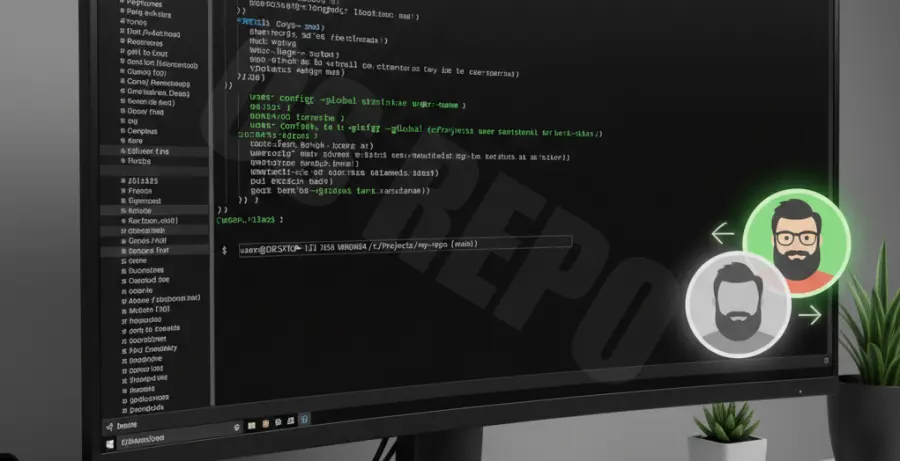
Troubleshooting Guide
To change your GitHub account in Git Bash effectively, you need to clear the cached credentials and update your local configuration. Follow these steps to resolve login failures.
Step 1: Clear Cached Credentials in Windows
On Windows, Git usually stores passwords in the Credential Manager. If you don’t clear these, Git Bash will never prompt you for the new account details.
- Open the Control Panel.
- Go to User Accounts > Credential Manager.
- Select Windows Credentials.
- Find entries labeled
git:https://github.com. - Click Remove.
Step 2: Update Git Global Config
Once the old credentials are removed, update your global Git profile to match your new GitHub account details.
git config --global user.name "YourNewUsername"
git config --global user.email "[email protected]"
Step 3: Update Remote URL (Optional)
If you are still facing issues with a specific repository, ensure the remote URL is correct. You can also force Git to ask for a username by embedding it in the URL.
git remote set-url origin https://[email protected]/username/repo.gitThe table below summarizes the different methods to manage account switching:
| Method | Best For | Effectiveness |
|---|---|---|
| Credential Manager | Switching accounts globally on Windows | High |
| SSH Keys | Managing multiple accounts simultaneously | Very High |
| HTTPS URL Embedding | Quick fix for a single repository | Medium |
Prevention
To prevent future Git login failures when managing multiple GitHub accounts, consider using SSH keys instead of HTTPS. You can generate a unique SSH key for each account and map them in a ~/.ssh/config file.
Another advanced technique is using Git Conditional Includes. This allows you to automatically switch user profiles based on the directory you are working in. For example, you can have a “Work” folder use one email and a “Personal” folder use another.
Finally, always use the git remote -v command before pushing to verify which account and repository you are targeting. This simple habit saves hours of troubleshooting permissions errors.