Immediate Fix: Adjust Your Cookie and Sign-in Settings
The most common reason Chrome keeps signing you out is a specific setting that clears your session data every time you close the browser. This is often intended for privacy but can be disruptive for daily use.
Enable Chrome Sign-in
First, ensure that your browser is actually allowed to sign into Google services. Go to Settings > You and Google > Sync and Google services. Locate the toggle for “Allow Chrome sign-in” and ensure it is switched to the ON position.
Disable ‘Clear Cookies on Exit’
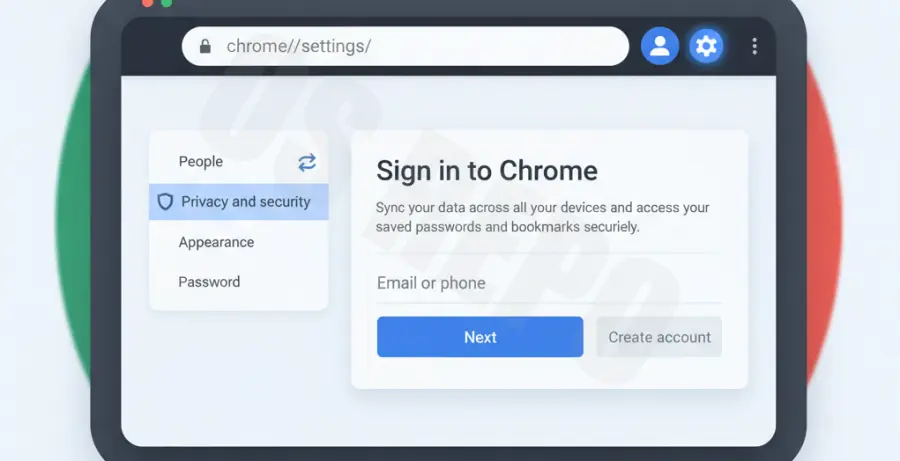
If your cookies are deleted whenever you close a window, your session token disappears. Navigate to chrome://settings/cookies in your address bar. Ensure that the option “Clear cookies and site data when you close all windows” is toggled OFF.
Technical Explanation: Why Chrome Fails to Maintain Sessions
Chrome uses “Session Cookies” and “Auth Tokens” to keep you logged in. When you sign in, Google drops a small text file on your hard drive. If this file is corrupted, blocked, or manually deleted by a browser policy, Chrome treats you as a new, unauthenticated user.
| Issue Component | Technical Root Cause | Expected Behavior |
|---|---|---|
| SQLite Database | Corrupt ‘Cookies’ file in User Data folder. | Session persistent across restarts. |
| Sync Loop | Mismatch between local profile and cloud data. | Automatic re-authentication. |
| System Time | Incorrect OS clock invalidating SSL certificates. | Instant logout due to security mismatch. |
In some cases, the browser’s local state file becomes read-only or corrupted due to an unexpected system shutdown. This prevents the browser from updating your login status.
Alternative Methods: Deep Cleaning and Profile Resets
If the standard settings do not work, you may need to clear the underlying local storage where Chrome keeps its profile data. This forces the browser to create a fresh, uncorrupted link to your Google account.
Clear Local State via Command Line
Advanced users can resolve persistent login loops by removing the local state file. Close Chrome completely before running this command in your terminal:
# For macOS users to clear local state
rm -rf ~/Library/Application\ Support/Google/Chrome/Local\ State

# For Linux users
rm -rf ~/.config/google-chrome/Local\ State
Reset Browser Settings
Extensions or third-party “cleaner” software can sometimes interfere with Chrome’s ability to retain data. To rule this out, go to Settings > Reset settings > Restore settings to their original defaults. This will disable all extensions and clear temporary data without deleting your bookmarks or passwords.
Finally, ensure your system clock is synchronized. If your computer’s time is even a few minutes off from Google’s servers, the security certificates will expire immediately, forcing a logout for your protection.