Immediate Fix
To stop screen flickering in your Electron application immediately, you must disable hardware acceleration. This tells Chromium to rely on software rendering rather than the GPU.
Add the app.disableHardwareAcceleration() method to your main process file. It is critical that this line is called before the app is ready.
const { app } = require('electron');

// This must be called before the app's ready event
app.disableHardwareAcceleration();

app.on('ready', () => {
  // Your window creation code here
});
Once implemented, the flickering caused by GPU driver incompatibilities or rendering conflicts in Node.js environments will cease. This is the most reliable workaround for multi-monitor setups or virtual machines.
Technical Explanation
Screen flickering in Electron apps typically occurs due to a mismatch between the Chromium rendering engine and the host system’s GPU drivers. This is common in Node.js desktop environments where hardware acceleration tries to optimize performance but fails due to outdated drivers.
When hardware acceleration is active, Chromium offloads the painting of the UI to the graphics card. If the driver does not support specific CSS transitions or window transparency settings, the screen may “blink” or show black rectangles.
| Factor | Impact on Flickering |
|---|---|
| GPU Acceleration | High – Primary cause of frame buffer conflicts. |
| Transparency | Medium – Can cause artifacts if GPU is unstable. |
| Driver Version | High – Older drivers often lack support for modern Electron builds. |
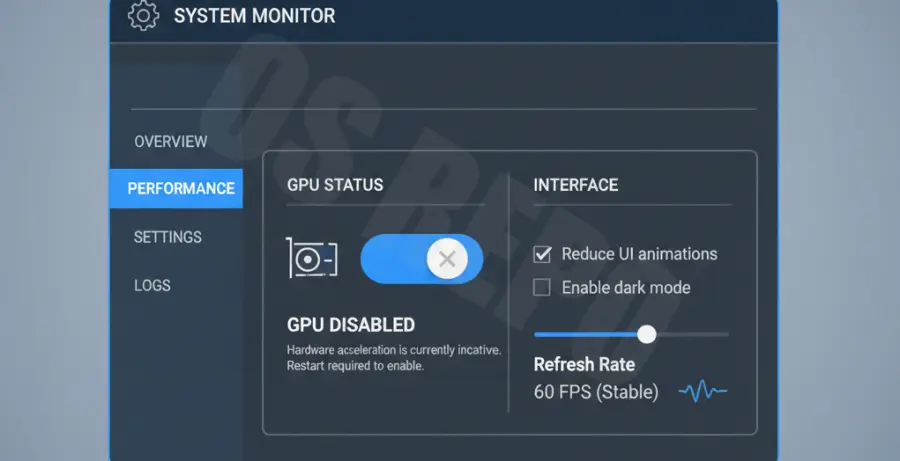
By disabling the GPU, you force Electron to use the SwiftShader software renderer. While this slightly increases CPU usage, it provides a stable, flicker-free visual experience across different hardware configurations.
Alternative Methods
If you cannot modify the source code or need more granular control, you can use command-line switches. These flags are passed when launching the Electron executable.
The --disable-gpu flag is the standard approach for CLI-based fixes. You can also disable specific features like the software rasterizer to troubleshoot further.
# Launching via terminal
electron . --disable-gpu

# Disabling specific rendering features
electron . --disable-software-rasterizer --disable-gpu-compositing
Environment Variables
In some production environments, setting an environment variable is more efficient. This is useful for Docker containers or CI/CD pipelines where UI rendering isn’t necessary.
Set ELECTRON_DISABLE_GPU=true in your system environment to apply the fix globally to your application process without changing the JavaScript logic.