Symptoms & Diagnosis
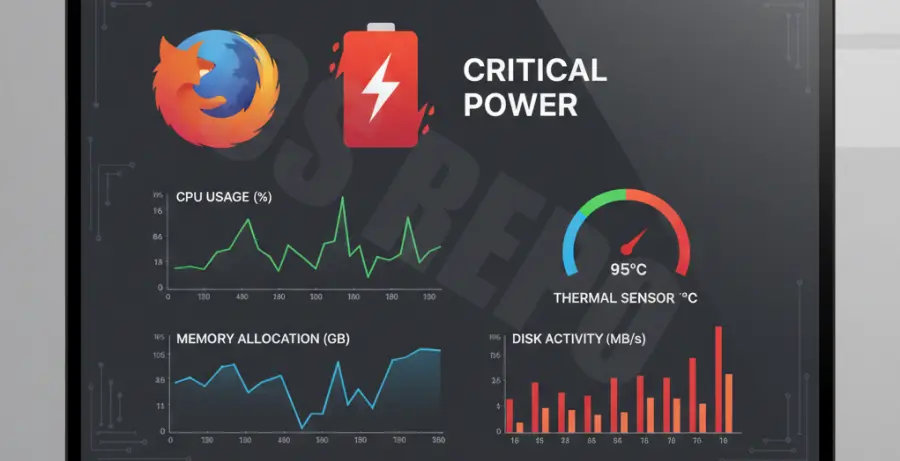
Firefox is a powerful browser, but high resource consumption can lead to rapid battery depletion. Identifying whether Firefox is the culprit requires looking at specific system behaviors.
Common signs include your laptop’s fan spinning loudly while browsing, the bottom of the device becoming hot, or the battery percentage dropping significantly within an hour of use. These issues often stem from “runaway” processes or inefficient scripts running in the background.
To diagnose the exact cause, you should use the built-in Task Manager. Type about:processes into your address bar to see which tabs or extensions are consuming the most CPU power.
| Symptom | Primary Cause | Impact Level |
|---|---|---|
| High CPU Usage | Complex JavaScript or Video Decodes | High |
| Continuous Disk I/O | Cache writing or large downloads | Medium |
| GPU Spikes | Hardware acceleration conflicts | High |
Troubleshooting Guide
The first step in fixing battery drain is to isolate problematic extensions. Many users find that ad-blockers or theme customizers can conflict with newer Firefox updates, leading to higher power draw.
Try restarting Firefox in “Troubleshoot Mode” by holding the Shift key while launching the application. If the battery life improves, one of your extensions is likely the cause.
You can also check your Firefox version and environment variables via the terminal to ensure no external configurations are forcing high-performance modes on integrated graphics:
firefox --version
# Check for environment overrides that might affect power
env | grep -i "MOZ"
Hardware acceleration is another common factor. While intended to speed up the browser, it can sometimes cause the dedicated GPU to stay active instead of the power-efficient integrated chip. You can toggle this in Settings > General > Performance.
Advanced Configuration Fixes
If standard settings don’t work, you can tweak the about:config menu. Search for browser.tabs.remote.autostart and ensure it is set to true to allow proper process sandboxing, which helps manage power more effectively.
Additionally, lowering the content process limit can save memory and CPU cycles. Go to Settings and look for the “Performance” section. Uncheck “Use recommended performance settings” and set the “Content process limit” to 2 or 4.
Prevention
Preventing future battery drain requires a proactive approach to tab management. Every open tab consumes a small amount of energy, and “zombie” tabs can continue to run scripts even when not in focus.
Consider using an extension like “Auto Tab Discard.” This tool puts inactive tabs into a suspended state, effectively cutting their power consumption to zero until you click on them again.
Keep Firefox updated to the latest version. Mozilla frequently releases “Energy Impact” patches specifically designed for macOS and Windows 11 power management APIs.
Finally, always prefer using “Efficiency Mode” in your operating system settings. Modern versions of Windows and macOS can throttle background browser activity to prioritize battery longevity without significantly impacting your browsing speed.