Immediate Fix
If your iPad Pro displays a “Bluetooth Pairing Request Failed” error, the fastest solution is to toggle the Bluetooth radio and force a fresh handshake. Open Settings, tap Bluetooth, and turn the switch off for 10 seconds before turning it back on.
If the error persists, you must “Forget” the device. Tap the (i) icon next to the failing device name and select Forget This Device. This clears the corrupted pairing keys from the iPad’s local cache.
Perform a forced restart on your iPad Pro to clear temporary system glitches. Quickly press and release the Volume Up button, then the Volume Down button, and finally hold the Top button until the Apple logo appears. This resets the hardware controller without deleting your data.
Technical Explanation
The “Pairing Request Failed” error typically occurs during the SDP (Service Discovery Protocol) phase. This is when the iPad and the Bluetooth peripheral exchange capability profiles. If the timing is off or the encryption keys don’t match, the iOS kernel terminates the connection for security.
Software interference is another common culprit. When the iPad Pro’s network stack becomes bloated with stale cache files, it can lead to time-outs during the pairing request. This is why resetting network settings often resolves persistent Bluetooth handshake failures.
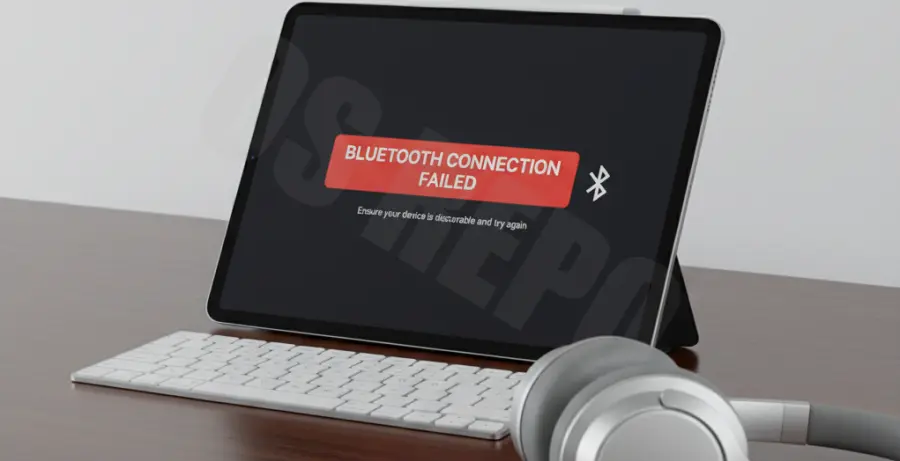
Understanding the Handshake
Bluetooth uses a frequency-hopping spread spectrum. If there is significant 2.4GHz interference from microwaves or older Wi-Fi routers, the “request” packet may drop before the “acknowledgment” packet is received, leading to the failure message.
Alternative Methods
For users who cannot resolve the issue through the standard UI, checking the system status or resetting the pairing via a connected Mac can help. Below is a diagnostic command to check Bluetooth status if you have your iPad connected to a macOS terminal:
# Check Bluetooth controller status on a connected Apple environment
system_profiler SPBluetoothDataType | grep -A 10 "Connected"
If the software remains unresponsive, you may need to reset your network configuration. This clears all saved Wi-Fi passwords and Bluetooth pairings, returning the radio stack to a factory state.
| Step | Action | Expected Result |
|---|---|---|
| 1 | Reset Network Settings | Clears radio cache and corrupted pairing logs. |
| 2 | Update iPadOS | Installs latest Bluetooth firmware and driver patches. |
| 3 | Check Peripheral Battery | Ensures the device has enough power to broadcast a signal. |
Lastly, ensure the device you are trying to pair is in “Pairing Mode.” Most devices require holding a specific button until a light flashes. If the device is already paired to another phone or tablet, it will reject the iPad Pro’s request automatically.