| Issue | Primary Fix | Estimated Time |
|---|---|---|
| Apple ID Password Loop | Sign Out & Force Restart | 5 Minutes |
| Verification Failed | Check Apple Server Status | 2 Minutes |
| Persistent Pop-ups | Reset All Settings | 10 Minutes |
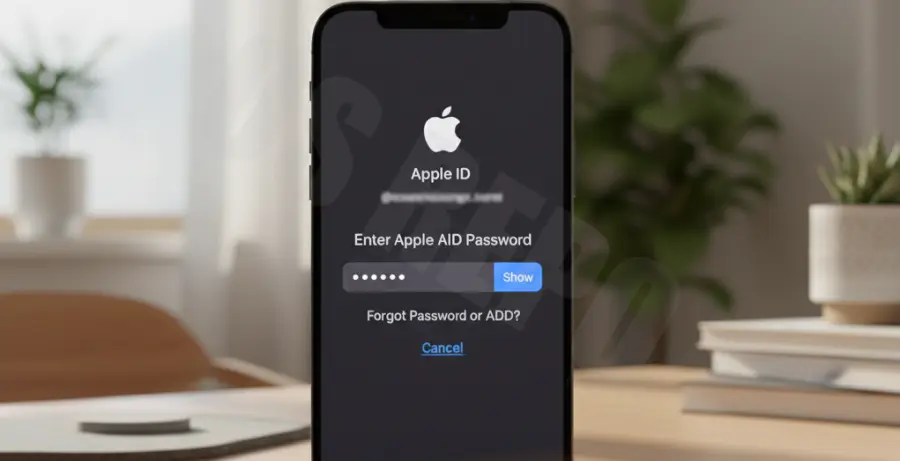
What is fix iphone 16 pro apple id password loop?
The “fix iphone 16 pro apple id password loop” refers to a troubleshooting process for a common iOS bug. In this scenario, the iPhone 16 Pro repeatedly asks for the user’s Apple ID password.
Even after entering the correct credentials, the prompt reappears almost immediately. This usually happens due to corrupted account settings, server-side communication errors, or a bug in the initial setup of a new device.
Step-by-Step Solutions
1. Check Apple System Status
Before changing your settings, ensure the problem isn’t on Apple’s end. Sometimes the authentication servers are down during high-traffic periods, such as a new iPhone launch.
Visit the official Apple System Status page. If “Apple ID” or “iCloud Account & Sign In” shows a red icon, you must wait for Apple to resolve the issue.
2. Force Restart your iPhone 16 Pro
A force restart clears the temporary cache and refreshes the system processes responsible for account verification.
# The physical sequence to trigger a restart:
1. Quickly press and release Volume Up.
2. Quickly press and release Volume Down.
3. Press and hold the Side Button until the Apple logo appears.
3. Sign Out and Back Into Apple ID
Refreshing your session is the most effective way to break the loop. This forces the device to establish a new handshake with Apple’s servers.
Go to Settings > [Your Name]. Scroll to the bottom and tap Sign Out. Restart your phone, then go back to Settings to sign in again.
4. Update to the Latest iOS Version
Apple frequently releases “Day 1” patches for the iPhone 16 Pro to fix activation and login bugs found in the initial shipment firmware.
Navigate to Settings > General > Software Update. If an update is available, download and install it immediately to patch known authentication loops.
5. Reset All Settings
If the loop persists, there may be a conflict in your system configuration. This step will not delete your data, but it will reset Wi-Fi passwords and system preferences.
# Navigation Path:
Settings -> General -> Transfer or Reset iPhone -> Reset -> Reset All Settings
Once the reset is complete, connect to your Wi-Fi and attempt the Apple ID login one more time.