Immediate Fix: Clear Application Data
Most JavaScript errors on Windows startup are caused by corrupted cache files in Electron-based applications like Discord, Spotify, or Teams. The fastest way to resolve this is to delete the application’s local folders.
Press Windows Key + R, type %AppData%, and press Enter. Locate the folder named after the application causing the error and delete it. Repeat this process for %LocalAppData%.
| Application | Common Directory | Action Required |
|---|---|---|
| Discord | %AppData%/discord | Delete Folder & Restart |
| Spotify | %LocalAppData%/Spotify | Delete Folder & Restart |
| Microsoft Teams | %AppData%/Microsoft/Teams | Clear Cache Folder |
After deleting these folders, restart your computer. The application will rebuild the necessary scripts upon the next launch, typically bypassing the startup error.
Technical Explanation
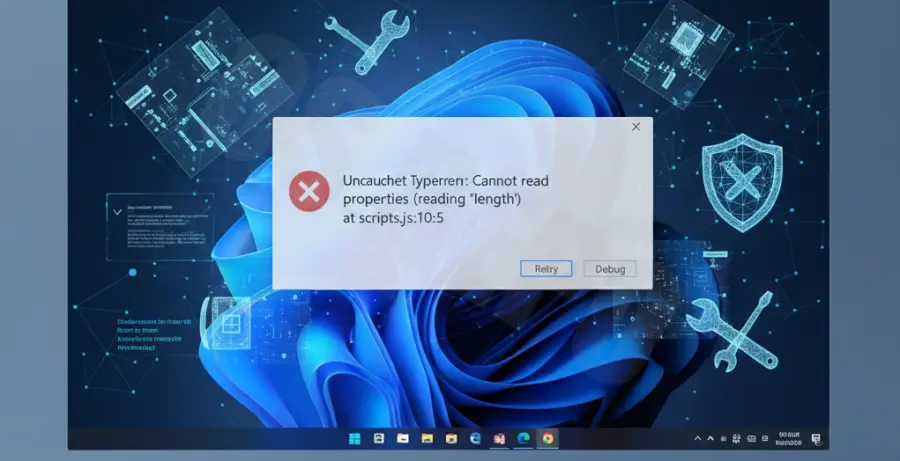
The “JavaScript error occurred in the main process” message usually indicates that the Windows Script Host or a specific application framework cannot find a required .js file. This happens when an entry in the Windows Registry points to a file that has been moved or deleted.
In many cases, the error stems from an incomplete update. When an app updates, it may fail to replace the old script pointers, leading to a mismatch during the boot sequence. Windows attempts to execute the script through the wscript.exe engine, which fails if the syntax is broken or the path is invalid.
Alternative Methods
1. Use Task Manager to Disable Startup Items
If you cannot identify the app, use the Task Manager to prevent unknown scripts from running. Press Ctrl + Shift + Esc and navigate to the Startup tab. Disable any suspicious entries or those listed as “cmd” or “wscript”.
2. Repair System Files
Corruption in system-level script engines can also trigger these errors. You can use the System File Checker (SFC) to repair these dependencies. Run the following command in an Administrative Command Prompt:
sfc /scannow3. Check the Startup Folder
Windows maintains a hidden folder for startup shortcuts. Press Windows Key + R, type shell:startup, and press Enter. If you see any .js or .vbs files in this folder that you do not recognize, move them to the desktop to see if the error disappears on the next reboot.