| Issue | Recommended Fix |
|---|---|
| Broken Dependencies | sudo apt --fix-broken install |
| Interrupted DPKG | sudo dpkg --configure -a |
| Lock File Errors | Remove /var/lib/dpkg/lock-frontend |
| Repository Issues | sudo apt update --fix-missing |
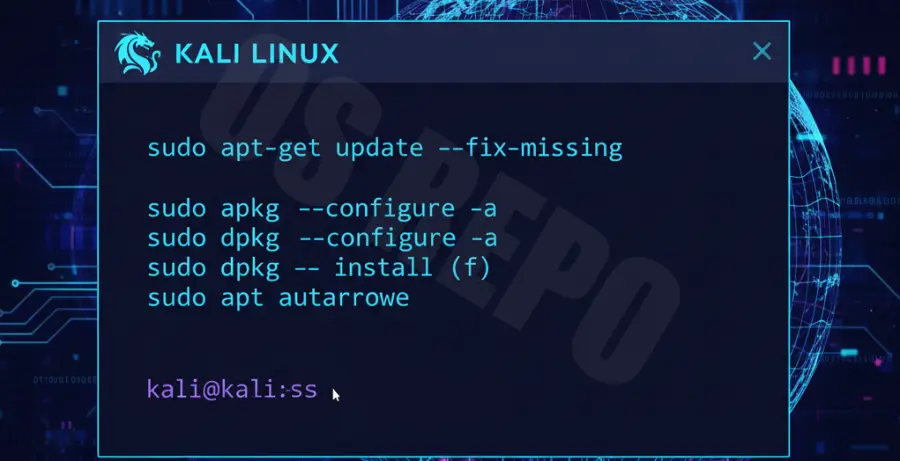
What are Kali Linux Broken Packages?
Broken packages in Kali Linux occur when the Advanced Package Tool (APT) encounters conflicts during installation or updates. This typically happens when dependencies are missing, or a process is interrupted.
When a package is “broken,” Kali cannot install new software or update existing tools. You will often see errors like “unmet dependencies” or “processing was interrupted.”
Common causes include power failure during an apt upgrade, manually installing incompatible .deb files, or using outdated repositories in your sources list.
Step-by-Step Solutions to Fix Broken Packages
Step 1: Update and Clean the Package List
First, try to refresh your local package index. This ensures your system knows the latest versions of required dependencies.
sudo apt update --fix-missingStep 2: Run the Fix-Broken Command
The most common fix is using the built-in APT repair flag. This command attempts to download missing dependencies and fix broken links.
sudo apt --fix-broken installStep 3: Reconfigure DPKG
If the installation was interrupted, the dpkg database might be locked or out of sync. Use this command to reconfigure partially installed packages.
sudo dpkg --configure -aStep 4: Force Remove Problematic Packages
If a specific package is causing a persistent loop, you may need to remove it forcefully. Replace “package_name” with the name of the error-causing software.
sudo apt remove --purge package_name
sudo apt autoremove
sudo apt autoclean
Step 5: Resolve Lock File Issues
If you see an error saying “Could not get lock,” it means another process is using the package manager. If no other update is running, manually remove the lock files.
sudo rm /var/lib/apt/lists/lock
sudo rm /var/lib/dpkg/lock
sudo rm /var/lib/dpkg/lock-frontend
Step 6: Final System Upgrade
Once the errors are cleared, finalize the process by upgrading all packages to their latest stable versions.
sudo apt full-upgrade