Symptoms & Diagnosis
Before diving into complex fixes, you must identify the specific behavior of your audio failure. Laptop sound issues typically manifest as a complete lack of output, stuttering audio, or the OS failing to recognize any hardware.
Technical users managing audio via specific repositories or Git-based configurations may notice service crashes or sample rate mismatches that prevent the hardware from initializing correctly.
| Symptom | Probable Cause | Primary Check |
|---|---|---|
| Red ‘X’ on Speaker Icon | Disabled Driver or Service | Device Manager / Systemctl |
| Sound only via Headphones | Internal Speaker Hardware Failure | Jack Sensing Logic |
| Audio Service Not Found | Config Corruption (Git Audio/Pipewire) | Restart Audio Daemon |
Troubleshooting Guide
1. Verify Physical and Software Mutes
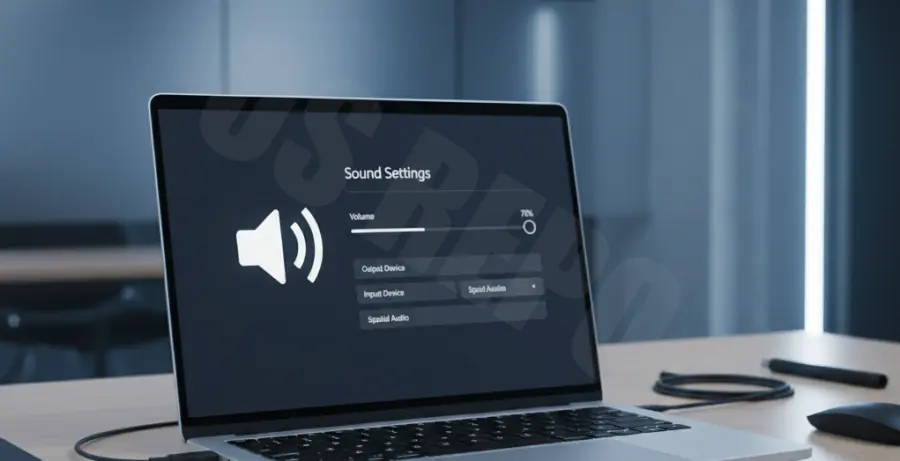
Ensure that the physical mute button or the Function (Fn) key shortcut hasn’t disabled the output. Check the system tray to ensure the volume slider is active and the correct output device is selected.
2. Restart Audio Services
If your laptop sound stopped working due to a software conflict or a failed update in a Git-managed audio environment, restarting the audio engine is the most effective fix. Use the following command to reset the audio stack on modern Linux distributions:
systemctl --user restart pipewire pipewire-pulse wireplumberFor Windows users, open “Services.msc,” locate “Windows Audio,” right-click it, and select “Restart.” This refreshes the link between the OS and the hardware abstraction layer.
3. Update and Reinstall Audio Drivers
Corrupted drivers are the leading cause of “No Audio Output Device Installed” errors. Navigate to your device manager, uninstall the High Definition Audio Controller, and reboot your system. The OS will attempt to pull a clean driver from the local cache or Windows Update upon restart.
Prevention
Preventing future audio failures requires regular maintenance of your system’s driver stack. Avoid using third-party “driver booster” software, as these often pull incompatible generic drivers that can lead to kernel-level conflicts.
If you manage your audio configurations via Git or manual scripts, always create a system restore point or a configuration backup before pulling new changes. Regularly cleaning your headphone jack with compressed air also prevents hardware-based “phantom” jack detection issues.