Symptoms & Diagnosis
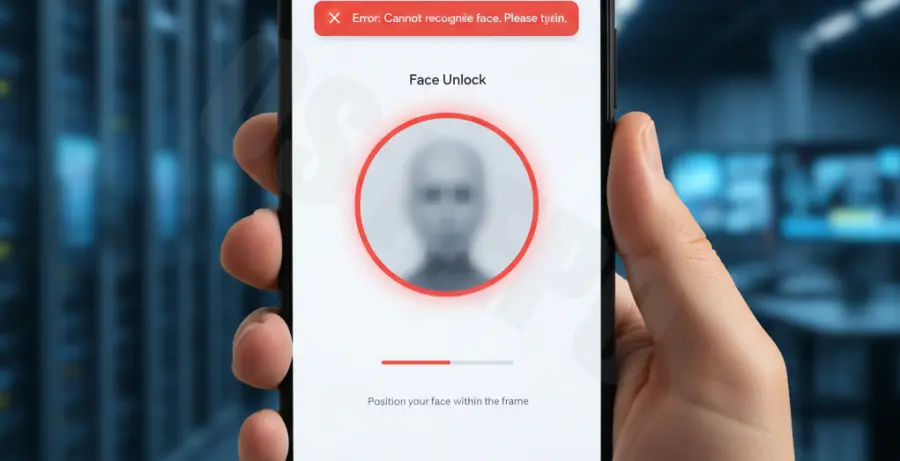
The Pixel 9 face unlock installation problem usually occurs during the initial device onboarding or when users attempt to add biometric data in the Security & Privacy menu. Users often encounter a persistent “Installation failed” message or a progress bar that hangs indefinitely.
To diagnose the issue, you must identify if the failure is network-related or a software conflict within the Google Play Services framework. Below is a diagnostic table to help categorize the error.
| Error State | Primary Suspect | Recommended Action |
|---|---|---|
| “Update Required” during setup | Outdated Google Play Services | Force update Play Services |
| Infinite “Downloading…” loop | Server-side handshake failure | Toggle Wi-Fi and clear Cache |
| “Face Unlock not available” | Hardware/Firmware mismatch | Check for OTA System Update |
Troubleshooting Guide
If you are stuck on the installation screen, the first step is to ensure that the biometric model download isn’t being blocked by a VPN or a restrictive firewall. Switch to a stable 2.4GHz or 5GHz Wi-Fi connection.
Force Update Google Play Services
The Face Unlock feature on Pixel 9 relies on specific modules delivered via the Play Store. If these are out of sync, the installation will fail. You can trigger a manual check using the following command via ADB if you have a developer environment set up:
adb shell am start -n com.google.android.gms/.update.phone.UpdateSettingsActivityClear Biometric Data Cache
Navigate to Settings > Apps > See all apps. Tap the three dots in the top right and select “Show system.” Locate the “Face Unlock” app and “Google Play Services,” then clear the cache and storage for both.
Check for Pending System Updates
Google often releases “Day 1” patches for the Pixel 9 series that address biometric sensor calibration. Go to Settings > System > System update and tap “Check for update.” Ensure your battery is above 50% before proceeding.
Restart in Safe Mode
Third-party apps with camera permissions can sometimes interfere with the biometric enrollment process. Restart your Pixel 9 in Safe Mode to see if the Face Unlock installation completes without interference.
Prevention
To prevent future Face Unlock installation problems, always keep your Google Play System Update current. This is separate from the main Android OS update and can be found under Settings > Security & Privacy > System & updates.
Avoid interrupting the device during the first 15 minutes after a factory reset or initial unboxing. The Pixel 9 downloads several background components, including the advanced AI models required for Face Unlock, during this window.
Lastly, ensure the top “notch” area of the screen is clean. While the Pixel 9 uses an under-display setup for some components, the front-facing camera lens must be free of smudges for the initial calibration phase to succeed.