| Issue | Common Causes | Primary Fix |
|---|---|---|
| Pixel 9 Sign-in Loop | Server timeout, Wi-Fi glitches, or outdated Play Services. | Restart device & Skip sign-in during initial setup. |
| Authentication Error | Incorrect credentials or 2FA verification failure. | Check credentials on another device. |
| “Couldn’t Connect” Message | Unstable network or captive portal Wi-Fi. | Switch to a stable 2.4GHz/5GHz Wi-Fi or LTE. |
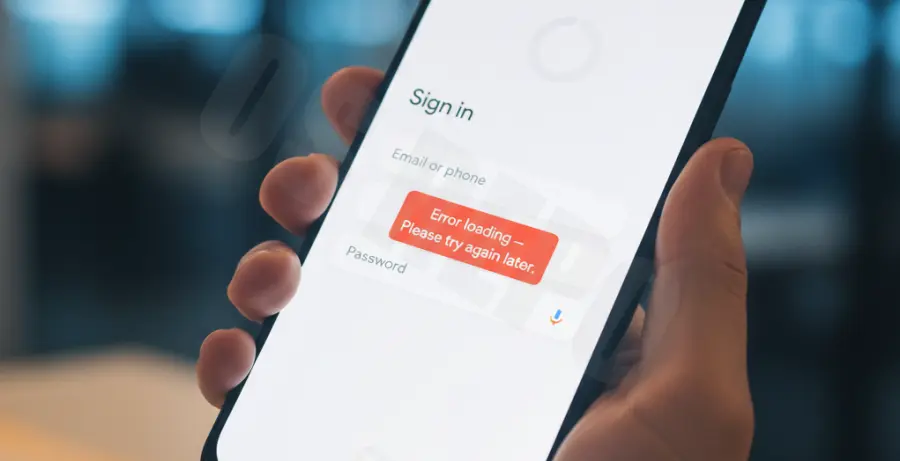
What is the Pixel 9 Google Account Sign-In Error?
The Pixel 9 Google account sign-in error occurs during the “Out of the Box Experience” (OOBE). It prevents users from linking their Google identity to their new device during initial setup.
This error typically manifests as a spinning loading icon, a generic “Could not sign in” message, or a loop that returns you to the Wi-Fi selection screen. It is often caused by a communication gap between the new Android 14/15 firmware and Google’s authentication servers.
In some cases, the error is triggered by “Google Play Services” requiring an immediate update that hasn’t triggered yet. This creates a catch-22 where you cannot sign in to update, and you cannot update because you aren’t signed in.
Step-by-Step Solutions to Fix Pixel 9 Setup Errors
1. Perform a Forced Restart
Often, the setup wizard process hangs. A forced restart clears the temporary cache and allows the OOBE process to restart fresh.
Press and hold the Power button and Volume Up button simultaneously for about 15 seconds until the Google logo appears.
2. The “Skip and Sign In Later” Method
This is the most effective workaround. By bypassing the sign-in during the initial wizard, you can access the home screen and update the system components before adding your account.
- When prompted to sign in to your Google account, look for the “Skip” button in the bottom left corner.
- Complete the rest of the setup (Fingerprint, PIN, etc.) without an account.
- Once on the Home Screen, go to Settings > Passwords & Accounts > Add Account.
3. Update Google Play Services via ADB
If you are tech-savvy and the skip method fails, you can attempt to trigger a system reboot or check connectivity using ADB. Ensure your Pixel 9 is connected to a PC.
# Check if device is recognized
adb devices

# Force a system reboot to clear setup flags
adb reboot

# Clear package data if accessible (Advanced)
adb shell pm clear com.google.android.gms
4. Switch Network Bands
Pixel 9 hardware sometimes struggles with Wi-Fi 6 or 6E protocols during the very first activation if the router configuration is strict. Try connecting to a standard 2.4GHz band or a mobile hotspot from another phone to bypass the initial handshake error.
5. Factory Reset from Recovery Mode
If the error persists and you are stuck in a loop, a factory reset via hardware buttons is necessary to wipe any corrupted setup data.
- Power off the Pixel 9.
- Hold Power + Volume Down to enter Fastboot Mode.
- Use volume keys to select Recovery Mode and press Power.
- Once the “No Command” screen appears, hold Power and tap Volume Up once.
- Select Wipe data/factory reset.