Symptoms & Diagnosis
Many users report a frustrating phenomenon where their internet connection becomes unstable immediately after updating to the latest NVIDIA GeForce drivers. This usually manifests as intermittent pings, complete disconnection during gaming, or “No Internet” errors while the GPU is under load.
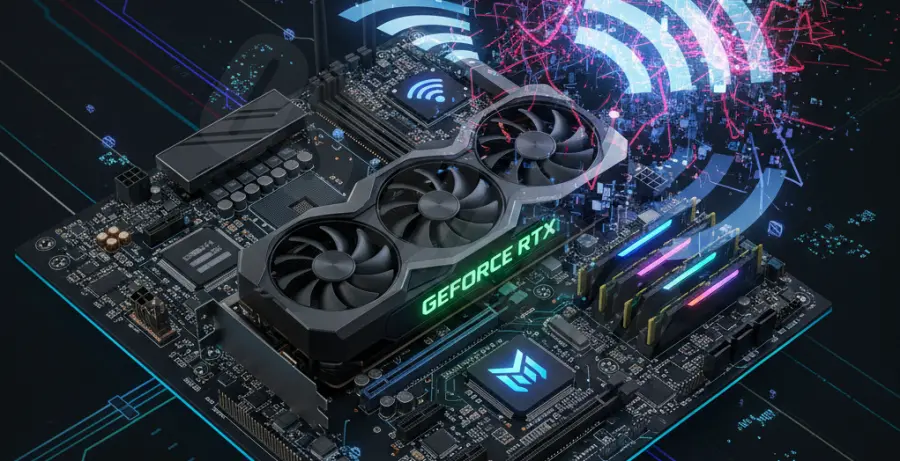
To diagnose if the NVIDIA driver is the culprit, check if the WiFi drops coincide with high GPU usage. Often, the issue stems from PCI Express power management conflicts or electromagnetic interference (EMI) between the graphics card and the wireless network interface card (NIC).
| Symptom | Probable Cause |
|---|---|
| WiFi disconnects during high FPS gaming | PCIe Power Management conflict |
| Ping spikes after driver update | Driver overhead or background telemetry |
| “Limited Connection” status | Network stack corruption during GPU install |
Troubleshooting Guide
The most common fix involves adjusting how Windows manages power for the PCI Express bus. NVIDIA drivers often trigger aggressive power-saving states that can starve the WiFi card of the bandwidth or voltage it needs to remain stable.
Adjust PCI Express Power Management
Navigate to your Power Plan settings. Open the “Change advanced power settings” menu. Find “PCI Express” and then “Link State Power Management.” Set this to “Off” for both Battery and Plugged-in modes.
Disable NVIDIA Telemetry Container
Sometimes the background services included with GeForce Experience interfere with network stability. You can try disabling the telemetry services using the command line to see if stability improves:
sc stop "NvTelemetryContainer"
sc config "NvTelemetryContainer" start= disabled
Perform a Clean Driver Installation
If the drops persist, a “dirty” driver installation might be the cause. Use Display Driver Uninstaller (DDU) in Safe Mode to completely wipe the current NVIDIA files. Reinstall the driver, but select “Custom (Advanced)” and check the “Perform a clean installation” box.
Change WiFi Adapter Power Settings
Right-click the Start button and select Device Manager. Locate your WiFi adapter under “Network adapters.” Right-click it, select Properties, and go to the Power Management tab. Uncheck “Allow the computer to turn off this device to save power.”
Prevention
To prevent future WiFi drops, consider using NVIDIA Studio Drivers instead of Game Ready Drivers if you do not require day-one patches for the newest games. Studio drivers are tested more rigorously for system stability and are less likely to cause hardware conflicts.
Ensure your WiFi card is not physically located directly beneath the GPU fans if you are using a desktop. The heat and electrical noise from the GPU can cause “thermal throttling” of the WiFi signal. If possible, use a PCIe extension cable or move the WiFi card to the furthest available slot.
Keep your motherboard BIOS and chipset drivers up to date. These updates often include fixes for PCIe bus communication issues that resolve conflicts between the GPU and other peripherals like your wireless adapter.