Immediate Fix: Restoring the Shell via Registry Editor
A Windows 10 black screen often occurs because the explorer.exe process—the interface responsible for your desktop and taskbar—fails to launch. You can force this to reset using the Registry Editor.
If you only see a black screen with a cursor, press Ctrl + Shift + Esc to open Task Manager. Go to File > Run new task, type regedit, check the box “Create this task with administrative privileges,” and click OK.
| Step | Action |
|---|---|
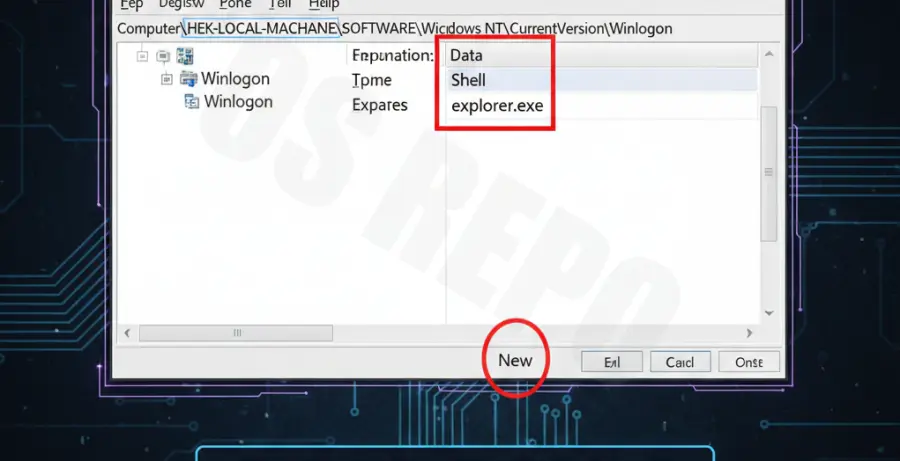
| 1 | Navigate to: HKEY_LOCAL_MACHINE\SOFTWARE\Microsoft\Windows NT\CurrentVersion\Winlogon |
| 2 | Find the string value named Shell in the right pane. |
| 3 | Double-click Shell and ensure the Value Data is set to explorer.exe. |
| 4 | Restart your computer to apply changes. |
If the Shell value contains anything other than explorer.exe, or if it is empty, Windows will not load your user interface, resulting in the black screen.
# Example of the correct registry path for Shell
HKEY_LOCAL_MACHINE\SOFTWARE\Microsoft\Windows NT\CurrentVersion\Winlogon\Shell = explorer.exe
Technical Explanation: Why the Black Screen Occurs
The “Black Screen of Death” usually signifies a failure in the communication between the Windows kernel and the graphical user interface. Specifically, the Winlogon process handles the user profile load and triggers the Shell value.
Corruption in the Registry can happen due to interrupted Windows Updates, sudden power loss, or malware that attempts to hijack the boot process. By modifying the Shell entry, you are manually pointing Windows back to its default graphical manager.
Alternative Methods to Resolve Black Screen Issues
If the Registry Editor fix does not work, the issue may lie with your graphics drivers or system file integrity. First, try the keyboard shortcut Windows Key + Ctrl + Shift + B to restart your video driver.
Run SFC and DISM Commands
You can run system repairs through the Task Manager even if your desktop is missing. In Task Manager, run a new task cmd.exe with administrative privileges and execute the following:
sfc /scannow
dism /online /cleanup-image /restorehealth
Boot into Safe Mode
If you cannot access Task Manager, restart your PC three times during the boot sequence to trigger Automatic Repair. From there, navigate to Advanced options > Startup Settings > Restart and select Safe Mode with Networking.
In Safe Mode, you can uninstall recent updates or roll back graphics drivers that may be causing the conflict with the Windows 10 environment.