Symptoms & Diagnosis
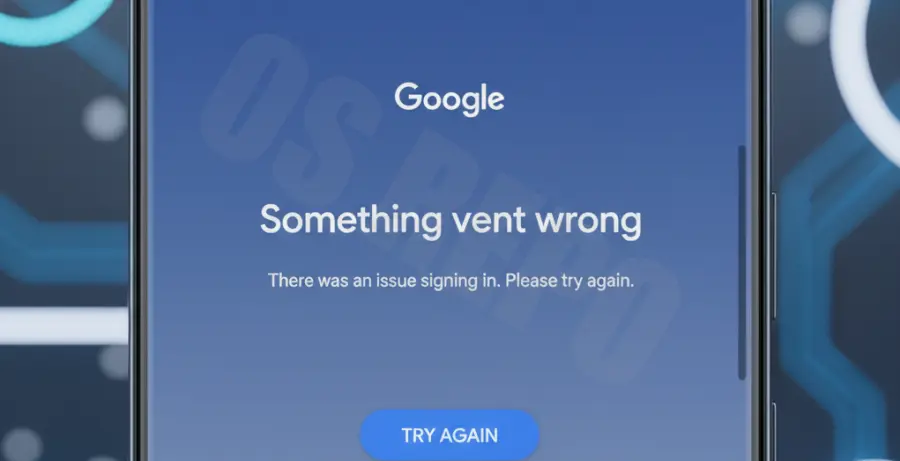
The Galaxy S25 Ultra is a powerhouse, but a “Google account login failed” error can render its best features useless. This issue typically prevents access to the Play Store, Gmail, and cloud backups.
Common symptoms include the device getting stuck on the “Checking info” screen or displaying messages like “There was a problem communicating with Google servers.” Identifying the trigger is the first step toward a resolution.
| Error Symptom | Probable Cause |
|---|---|
| Infinite “Checking Info” loop | Google Play Services cache corruption |
| “Couldn’t Sign In” server error | Incorrect Date/Time or Network blockage |
| Password rejected (despite being correct) | Two-Factor Authentication (2FA) handshake failure |
Troubleshooting Guide
Step 1: Synchronize System Date and Time
Google’s security certificates rely on a precise time match between your device and their servers. If your Galaxy S25 Ultra is even two minutes off, the login handshake will fail for security reasons.
Navigate to Settings > General Management > Date and time. Ensure that “Automatic date and time” is toggled ON. If it is already on, toggle it off and back on to refresh the sync.
Step 2: Clear Google Play Services Data
Corrupted local data often interferes with the authentication process. Clearing the cache for Google Play Services acts as a soft reset for the login module without deleting your personal files.
For advanced users or developers using ADB, you can simulate a service refresh using the following logic:
# Refreshing Google Play Services via shell logic
pm clear com.google.android.gms
pm clear com.android.vending
Step 3: Reset Network Settings
Network configurations or DNS glitches can prevent the Galaxy S25 Ultra from reaching Google’s authentication nodes. Resetting your network settings can clear these invisible barriers.
Go to Settings > General Management > Reset > Reset mobile network settings. Note that this will also clear saved Wi-Fi passwords and Bluetooth pairings.
Step 4: Remove and Re-add the Google Account
If the error persists after a password change, the old credentials might be “ghosting” in the system. Removing the account completely and re-authenticating often clears the error loop.
Go to Settings > Accounts and backup > Manage accounts. Tap your Google email and select “Remove account.” Restart the phone, then tap “Add account” to try again.
Prevention
To avoid future login failures on your Galaxy S25 Ultra, always keep your Google Play System Update current. This is separate from the standard Android OS updates and can be found under “Security and Privacy.”
Additionally, avoid using high-latency VPNs during the initial login process. Google’s security algorithms may flag a rapid change in IP address as a suspicious login attempt, triggering a temporary lockout.
Finally, ensure that your Samsung account and Google account are properly linked in the device settings to streamline background synchronization and security handshakes.