Symptoms & Diagnosis
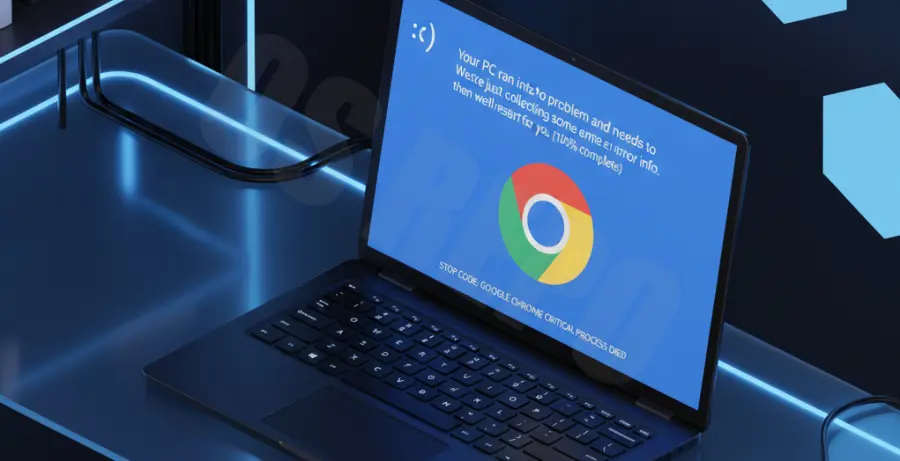
The Google Chrome blue screen loop occurs when the browser triggers a Windows Stop Error immediately upon launching. Users typically experience a “CRITICAL_PROCESS_DIED” or “IRQL_NOT_LESS_OR_EQUAL” message before the system reboots.
This loop is often caused by corrupted GPU cache files or incompatible hardware acceleration settings. You will notice the system crashes only when the Chrome process attempts to initialize its graphical interface.
Troubleshooting Guide
Before proceeding, ensure you have saved all open work. Most fixes for the Chrome BSOD loop require modifying the application’s launch parameters or system-level drivers.
| Issue Component | Primary Fix Action | Success Rate |
|---|---|---|
| Hardware Acceleration | Disable via Command Line | High |
| Corrupted User Profile | Rename “Default” Folder | Medium |
| Outdated GPU Driver | Rollback or Update Driver | High |
Disable Hardware Acceleration via CMD
If you cannot open Chrome to change settings, you must force it to launch without GPU support. This bypasses the buggy driver interaction causing the crash.
# Close all Chrome processes first
taskkill /F /IM chrome.exe
# Launch Chrome with GPU disabled
start chrome.exe --disable-gpu --disable-software-rasterizer
Clear Local Shader Cache
Corrupted DirectX or OpenGL shader caches stored by Chrome can trigger kernel-level crashes. Deleting these files forces Chrome to rebuild them safely.
# Navigate to the GPU Cache directory
cd %LOCALAPPDATA%\Google\Chrome\User Data\ShaderCache
# Remove all cache files
del /q /s *
Prevention
- Keep GPU Drivers Updated: Use official tools from NVIDIA, AMD, or Intel to ensure your display drivers are compatible with the latest Chromium builds.
- Audit Extensions: Regularly remove third-party extensions that interact with page rendering or video playback.
- Monitor System RAM: Use Windows Memory Diagnostic to ensure the BSOD isn’t being triggered by failing hardware modules during high browser load.
- Limit Experimental Flags: Avoid enabling multiple “Chrome://flags” features simultaneously, as these can create unstable environment variables.