Symptoms & Diagnosis
Windows 11 crashes to desktop (CTD) are often the first sign of failing hardware. When your RAM contains “bad sectors” or faulty chips, the OS cannot store temporary data reliably.
Common symptoms include the Blue Screen of Death (BSOD), sudden system freezes, or applications closing without an error message. If your PC performs fine during light tasks but crashes during gaming or video editing, memory instability is likely the culprit.
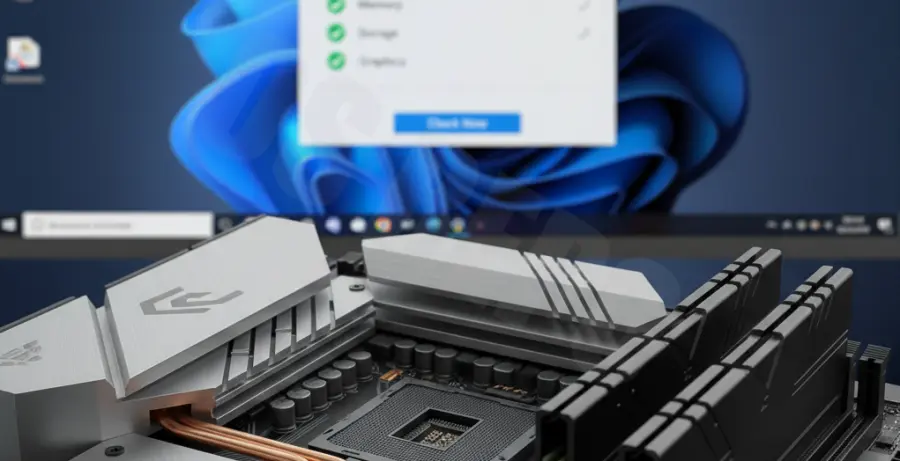
Before running deep scans, identify the specific stop codes associated with memory failure. These codes help confirm that the RAM—rather than your GPU or CPU—is the point of failure.
| Stop Code / Error | Probable Cause |
|---|---|
| MEMORY_MANAGEMENT | Severe RAM hardware failure or driver conflict. |
| PAGE_FAULT_IN_NONPAGED_AREA | Invalid system memory being referenced. |
| DATA_BUS_ERROR | Physical defect in the RAM stick or motherboard slot. |
Troubleshooting Guide
Windows 11 includes a built-in utility called the Windows Memory Diagnostic tool. It is the most efficient way to test your modules without third-party software.
Method 1: Windows Memory Diagnostic
1. Press Win + R, type mdsched.exe, and hit Enter.
2. Select “Restart now and check for problems.” Note that your PC will reboot immediately.
3. The tool will launch in a blue environment. Let it complete the “Standard” test pass.
Method 2: Reviewing the Results
The results often disappear quickly after the reboot. You can retrieve the detailed log using the Event Viewer. Use the following command logic in a terminal to filter for memory results:
# Open Event Viewer and filter for 'MemoryDiagnostics-Results'
Get-WinEvent -FilterHashtable @{logname='System'; id=1201} | select -First 10 | Format-List
Method 3: Checking RAM Health via Command Line
If you suspect a hardware serial issue or want to check the status via WMI, use the WMIC interface. This provides a quick “OK” status for each installed module.
wmic memorychip get devicelocator, statusPrevention
To prevent future RAM-related crashes to desktop, ensure your system BIOS is up to date. Manufacturers often release updates that improve memory compatibility and stability for high-speed DDR4 or DDR5 modules.
Avoid aggressive overclocking (XMP/DOCP) if you encounter frequent errors. Sometimes, lowering the frequency by 100MHz or slightly increasing the voltage (within safe limits) can resolve intermittent crashing.
Finally, perform physical maintenance. Dust buildup in DIMM slots can cause poor connectivity. Reseating the RAM sticks every 12 months can prevent oxidation-related data corruption.