Immediate Fix: Clearing App Cache on Pixel 9
If your Pixel 9 apps are crashing to the desktop, the fastest solution is a manual cache purge. This removes temporary files that may have become corrupted during an update or sync.
To clear the cache for a specific crashing app, follow these steps:
1. Open Settings.
2. Tap on Apps and select See all apps.
3. Find the app that is crashing and tap it.
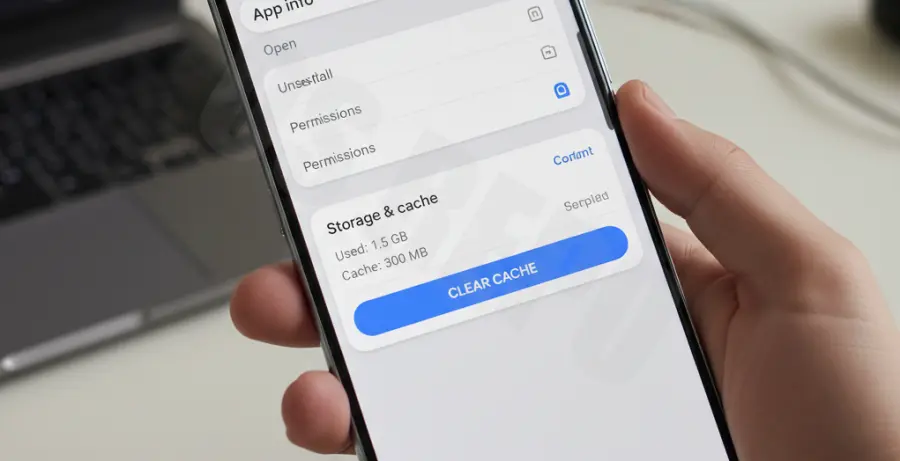
4. Select Storage & cache.
5. Tap Clear cache.
For advanced users, you can use ADB (Android Debug Bridge) to clear the cache of a specific package via a workstation.
adb shell pm clear com.package.nameThe table below outlines which action to take based on the severity of the crash:
| Crash Symptom | Recommended Action | Data Risk |
|---|---|---|
| App closes instantly | Clear Cache | Zero |
| App freezes on splash screen | Clear Storage (Data) | High (Resets App) |
| System-wide lag | Restart into Safe Mode | Zero |
Technical Explanation: Why Pixel 9 Apps Crash
Crashes to desktop (CTD) on the Pixel 9 typically occur due to “stale” data. When an app updates, it expects the cached files in the directory to match its new architecture. If there is a mismatch, the app encounters a null pointer or memory exception.
The Tensor G4 chip handles memory management aggressively. If the cache partition contains fragmented files, the system may kill the process to protect the OS integrity, resulting in an immediate crash. Clearing the cache forces the app to rebuild these temporary files from scratch.
Alternative Methods to Stop Pixel 9 Crashes
If clearing the individual app cache does not resolve the issue, you may need to target system-level services. Often, the Google Play Services cache is the culprit for background crashes.
Go to Settings > Apps > Google Play Services > Storage & cache > Clear cache. This refreshes the underlying framework that most Pixel apps rely on for connectivity and authentication.
Another effective method is to Reset App Preferences. This doesn’t delete your data but resets all disabled apps, notification restrictions, and default app actions. Navigate to Settings > System > Reset options > Reset app preferences.