Symptoms & Diagnosis
By default, Windows Server 2022 is optimized for performance and security, which means non-essential services like audio are disabled. Users often encounter a red “X” over the volume icon in the system tray.
The most common symptom is the “No Audio Output Device is installed” message when hovering over the sound icon. This occurs even if compatible hardware or virtual drivers are present.
Diagnosis involves checking the status of the Windows Audio service. If you attempt to adjust the volume, Windows may prompt you to enable the service, but manual configuration is often required for persistence after reboots.
Troubleshooting Guide
To restore sound, you must enable and automate the specific services responsible for the audio subsystem. Follow these steps to ensure audio remains active.
Step 1: Enable Windows Audio Services
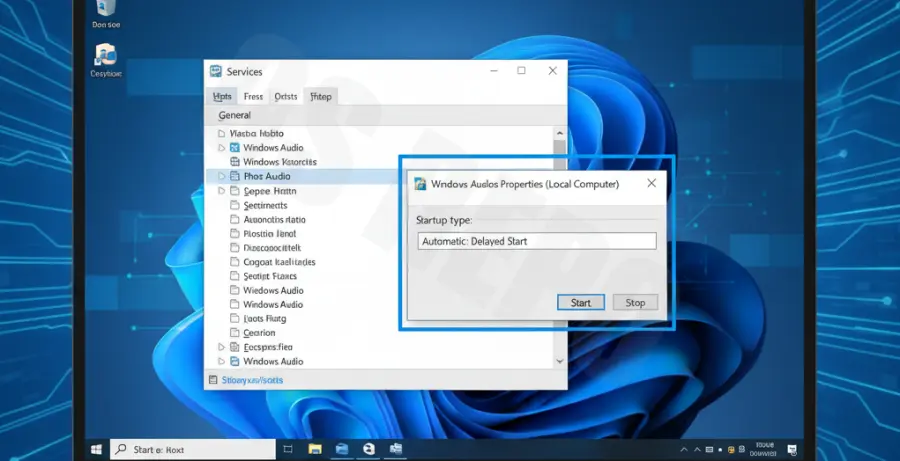
Open the Services management console by pressing Win + R, typing services.msc, and hitting Enter. You need to modify two specific services.
| Service Name | Startup Type | Status |
|---|---|---|
| Windows Audio | Automatic | Running |
| Windows Audio Endpoint Builder | Automatic | Running |
Double-click each service, change the Startup type to Automatic, click Apply, and then click Start.
Step 2: Enable Audio via PowerShell
If you are managing a Core installation or prefer automation, use PowerShell to start and configure the services quickly.
# Set Audio services to Automatic and Start them
Set-Service -Name "AudioSrv" -StartupType Automatic
Start-Service -Name "AudioSrv"
Set-Service -Name "AudioEndpointBuilder" -StartupType Automatic
Start-Service -Name "AudioEndpointBuilder"
Step 3: Remote Desktop Audio Redirection
If you are accessing Windows Server 2022 via RDP, you must also enable audio redirection. Open gpedit.msc and navigate to: Computer Configuration > Administrative Templates > Windows Components > Remote Desktop Services > Remote Desktop Session Host > Device and Resource Redirection.
Set “Allow audio and video playback redirection” to Enabled.
Prevention
To prevent audio services from stopping unexpectedly, ensure that no aggressive Group Policy Objects (GPOs) are disabling hardware services for security hardening.
If the server is used for VDI or multimedia processing, add the “Desktop Experience” feature (installed by default in the GUI version) and keep your audio drivers updated through the manufacturer’s support site.
Regularly monitor the “Windows Audio” service status using monitoring tools to ensure it hasn’t been reverted to “Manual” by a system update or optimization script.