Understanding the Android 15 Update Failure
Upgrading to Android 15 should be a seamless experience, but technical glitches can sometimes trigger a “Rescue Party” event. This happens when the system detects a loop of core process crashes during boot.
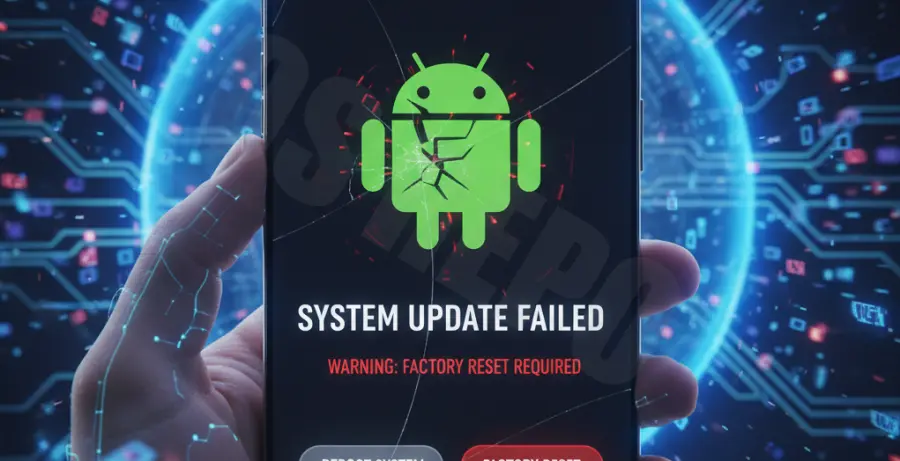
When the update fails, the device often boots into a recovery screen. You are usually presented with a terrifying choice: “Try Again” or “Factory Data Reset.” Choosing the latter wipes your data, which is why a technical diagnosis is critical before clicking that button.
Symptoms & Diagnosis
Identifying the root cause of an Android 15 installation error helps prevent data loss. Common symptoms include the device getting stuck on the manufacturer logo or repeatedly rebooting into the Recovery Menu.
Check for the “Cannot load Android system” error message. This usually indicates a corrupted system partition or a mismatch in the A/B slot switching mechanism used by modern Android devices.
Troubleshooting Guide
Before proceeding with a factory reset, you should attempt to rescue the firmware. The most effective method for Android 15 is using the Android Debug Bridge (ADB) to sideload the OTA (Over-the-Air) image manually.
Step 1: Enter Recovery Mode
Power off your device. Press and hold the Power and Volume Down buttons simultaneously. Navigate using volume keys to “Apply update from ADB” and select it with the Power button.
Step 2: Sideload the Firmware
Connect your phone to a PC with ADB tools installed. Use the following command to push the official Android 15 image to your device without wiping data:
adb sideload ota_file_name.zipThis process overwrites corrupted system files while keeping your user partition intact. If the sideload completes successfully, select “Reboot system now.”
Step 3: Comparing Recovery Options
If the sideload fails, evaluate your options using the table below to determine if a factory reset is truly necessary.
| Method | Data Impact | Success Rate |
|---|---|---|
| Try Again / Reboot | None | Low (10%) |
| ADB Sideload | None | High (75%) |
| Factory Data Reset | Total Loss | Very High (99%) |
Prevention
To avoid Android 15 update failures in the future, always ensure you have at least 10GB of free internal storage. Insufficient space is a leading cause of partition corruption during the installation phase.
Always maintain a battery charge of at least 50% or keep the device plugged in during the update. A power cut during the “Optimizing Apps” stage can corrupt the system image, forcing a factory reset.
Lastly, ensure your bootloader is locked if you are using official OTAs. Unofficial modifications often conflict with Android 15’s new security headers, leading to immediate boot failures.