Symptoms & Diagnosis
Docker Installation Error 1603 is a generic MSI (Microsoft Installer) error code that indicates a fatal error occurred during installation. While the code itself is broad, in the context of Docker Desktop on Windows, it usually points to underlying issues with system permissions, corrupted registry keys, or conflicting virtualization settings.
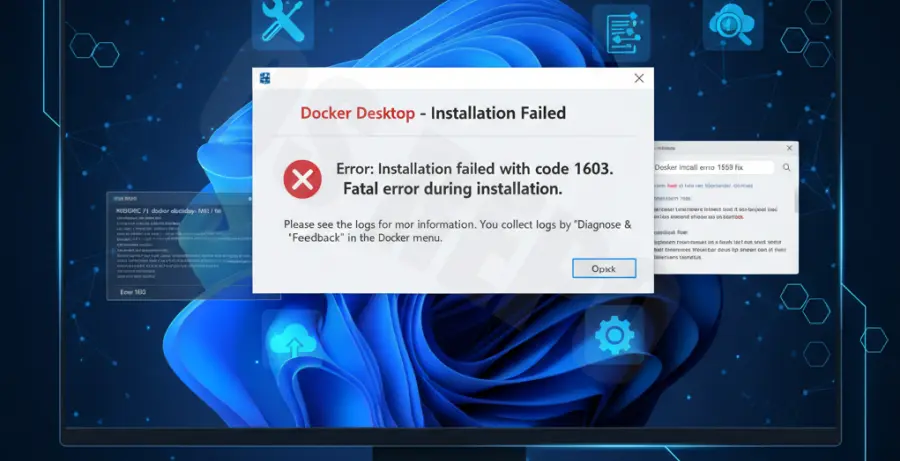
You will typically see a pop-up dialog stating “Installation failed” with the specific error code 1603. To diagnose the root cause, you should examine the Docker installation logs located in your %TEMP% folder. Look for strings like “Return value 3” which usually precedes the 1603 error and points to the specific action that failed.
Common triggers include an incomplete uninstallation of a previous version, the Windows Management Instrumentation (WMI) service being disabled, or insufficient disk space on the system drive. Identifying whether the error occurs during the “copying files” stage or the “starting services” stage is key to a quick fix.
Troubleshooting Guide
Follow these steps in order to resolve the 1603 error. Start with the most common fixes before moving to advanced registry edits.
Step 1: Clean Up Previous Installations
Often, 1603 is triggered by leftover files from a failed update. Use the following command in PowerShell (Admin) to ensure previous Docker components are removed.
# Stop Docker services if any are running
stop-service *docker* -ErrorAction SilentlyContinue

# Remove Docker directories
rmdir /s /q "C:\Program Files\Docker\Docker"
rmdir /s /q "C:\ProgramData\Docker"
Step 2: Check Windows Features
Docker requires specific Windows features to be enabled. If these are partially configured, the installer may fail. Ensure the following features are active via the “Turn Windows features on or off” menu or via PowerShell:
| Feature Name | PowerShell Command |
|---|---|
| Containers | Enable-WindowsOptionalFeature -Online -FeatureName Containers -All |
| Hyper-V | Enable-WindowsOptionalFeature -Online -FeatureName Microsoft-Hyper-V -All |
| WSL 2 | wsl –install |
Step 3: Reset WMI Repository
If the installer cannot query system information, it will throw a 1603 error. Resetting the Windows Management Instrumentation (WMI) repository can often clear this hurdle.
# Run these in an elevated Command Prompt
net stop winmgmt
winmgmt /resetrepository
net start winmgmt
Step 4: Registry Cleanup
If the installer still fails, a specific registry key might be “locked.” Navigate to HKEY_LOCAL_MACHINE\SOFTWARE\Microsoft\Windows\CurrentVersion\Installer\InProgress and delete any subkeys found there. This clears any pending installation flags that might block Docker.
Prevention
To avoid Error 1603 in the future, always ensure your Windows OS is fully updated before attempting a Docker installation. Cumulative updates often include fixes for the MSI engine and virtualization stack.
Always run the Docker Desktop Installer as an Administrator. Right-click the .exe file and select “Run as administrator” to grant the installer the necessary permissions to modify system binaries and services.
Lastly, ensure that third-party antivirus software is temporarily disabled during the installation process. Some security suites block the creation of the Docker virtual Ethernet bridge, which triggers a rollback and results in the 1603 error code.