Immediate Fix
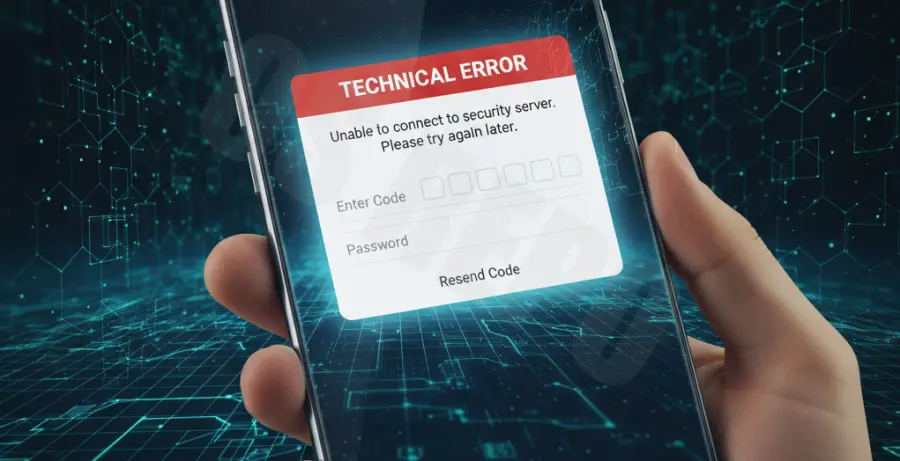
If you are experiencing a “Login Failed” message on your Galaxy S25 Ultra during two-step verification (2FA), the most frequent culprit is a time-synchronization mismatch. 2FA tokens are time-sensitive; if your device clock is off by even a few seconds, the server will reject your code.
Perform a hard reset of the synchronization services using the steps outlined in the table below:
| Fix Action | How to Execute |
|---|---|
| Force Time Sync | Go to Settings > General Management > Date and time. Toggle “Automatic date and time” OFF and then back ON. |
| Clear Play Services | Settings > Apps > Google Play Services > Storage > Clear Cache. |
| Use Backup Codes | Enter one of your 8-digit emergency recovery codes instead of the generated 2FA token. |
For advanced users with access to a computer, you can force the system to resync its global time settings via ADB (Android Debug Bridge) to ensure the hardware clock matches the network provider exactly:
adb shell settings put global auto_time 1
adb shell am broadcast -a android.intent.action.TIME_SET
Technical Explanation
The Galaxy S25 Ultra utilizes the Time-based One-Time Password (TOTP) algorithm. This security protocol generates a unique string based on a shared secret key and the current Unix timestamp. When your device’s internal clock drifts away from the Network Time Protocol (NTP) server, the generated token becomes invalid before it is even sent.
Furthermore, the S25 Ultra features a new Secure Element (eSE) chip. If the handshake between the Android OS and this hardware-level security chip is interrupted during a system update, the 2FA prompt may fail to initialize, resulting in a generic “Login Failed” error regardless of the code’s accuracy.
Alternative Methods
If the software-based fixes do not resolve the error, you may need to bypass the local 2FA prompt using an external verification method. This often clears the cached “failed” state on the device.
Account-Level Session Reset
On a separate device (laptop or tablet), log into your Google or Samsung account security settings. Locate your Galaxy S25 Ultra in the “Devices” list and select “Sign Out.” Restart your phone and attempt the login again; this forces the device to establish a new encrypted session.
Physical Security Key Override
The Galaxy S25 Ultra supports FIDO2-compliant hardware keys via USB-C or NFC. If the digital prompt is failing, choosing “Try another way” and tapping a physical YubiKey or Titan Key against the back of the phone can bypass the 2FA software bug entirely.