Immediate Fix: Force Restart and Display Toggles
The most effective immediate fix for iOS 18 OLED flickering is a forced hardware restart. This clears the temporary cache and resets the display driver initialization process.
Follow the specific button sequence for your iPhone model to trigger a hard reboot without losing data.
| Action | Button Sequence |
|---|---|
| Step 1 | Press and quickly release the Volume Up button. |
| Step 2 | Press and quickly release the Volume Down button. |
| Step 3 | Press and hold the Side button until the Apple logo appears. |
After the device reboots, toggle the “Reduce White Point” setting. Go to Settings > Accessibility > Display & Text Size and toggle “Reduce White Point” on and off to recalibrate the OLED brightness PWM (Pulse Width Modulation).
# Diagnostic check for display driver status
$ system_profiler SPDisplaysDataType | grep "Flicker"
# If output returns null, issue is likely software-side kernel timing.
Technical Explanation: Why is iOS 18 Flickering?
OLED flickering in iOS 18 is typically caused by inconsistencies in the display driver’s refresh rate management. On ProMotion displays, the system scales between 10Hz and 120Hz.
A bug in the iOS 18 kernel can cause the screen to oscillate rapidly between these frequencies, leading to a visible “strobe” effect. This is especially prevalent at low brightness levels where PWM is most active.
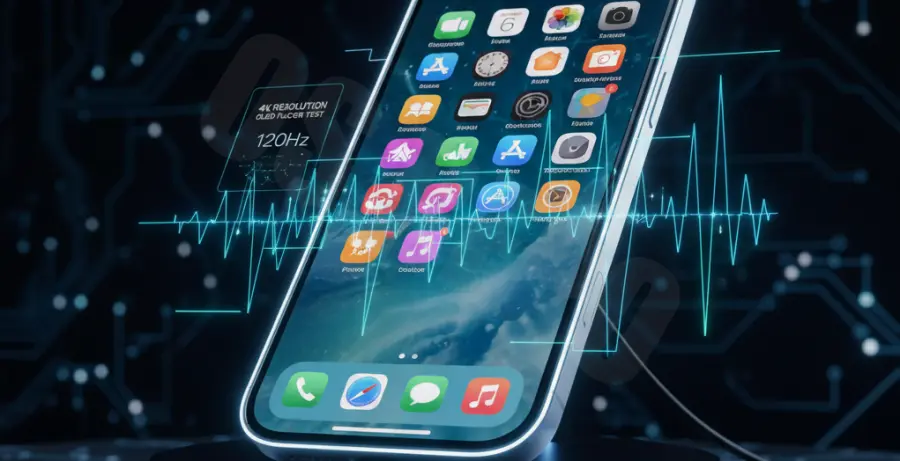
Furthermore, the “Always-On Display” logic in iOS 18 has been updated. This update can occasionally conflict with existing True Tone configurations, causing the OLED pixels to misfire during the transition from sleep to wake states.
Alternative Methods to Resolve Flickering
Disable ProMotion (Limit Frame Rate)
If you are using a Pro or Pro Max model, the 120Hz refresh rate might be the culprit. You can force the screen to stay at 60Hz to eliminate frequency fluctuations.
Navigate to Settings > Accessibility > Motion and toggle “Limit Frame Rate” to ON.
Reset All Settings
Corruption in the system’s UI configuration files often leads to display glitches. A “Reset All Settings” restores system defaults without deleting your personal apps or photos.
Go to Settings > General > Transfer or Reset iPhone > Reset > Reset All Settings.
DFU Mode Restore
If the flickering persists, the iOS 18 firmware may have been corrupted during the OTA (Over-The-Air) update process. A DFU (Device Firmware Update) restore is the deepest type of recovery.
Connect your iPhone to a Mac or PC, enter DFU mode, and use iTunes or Finder to reinstall the OS from scratch. Ensure you have a full backup before attempting this step.