Symptoms & Diagnosis
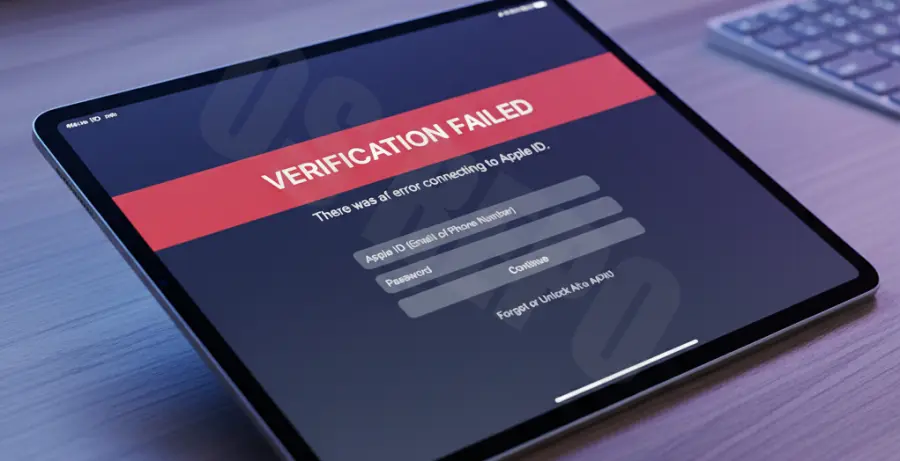
The “Verification Failed” error on an iPad Pro typically occurs when the device cannot establish a secure handshake with Apple’s authentication servers. You may see a message stating “There was an error connecting to the Apple ID server” or simply “Verification Failed.”
Common symptoms include being unable to sign into iCloud, failures when downloading apps from the App Store, or repeated prompts for your password that never resolve. This issue is often rooted in network configuration, incorrect system time, or server-side outages.
Troubleshooting Guide
Follow these technical steps to resolve the connection issue. We recommend starting with the simplest hardware check before moving to network resets.
Step 1: Verify Apple Server Status
Before modifying your iPad Pro settings, ensure the problem isn’t on Apple’s end. Visit the Apple System Status page. Look for “Apple ID” and “iCloud Account & Sign In.” If these services have a yellow or red indicator, you must wait for Apple to resolve the outage.
Step 2: Synchronize Date and Time
Encryption certificates require your iPad Pro’s system clock to match the server’s clock. If they are out of sync, the connection will be rejected for security reasons.
| Setting | Required Configuration |
|---|---|
| Set Automatically | Toggled ON (Settings > General > Date & Time) |
| Time Zone | Should match your current physical location |
Step 3: Perform a Force Restart
A force restart clears the temporary cache and reinitializes the wireless radios without deleting your data. This is often enough to fix minor iPadOS authentication bugs.
# iPad Pro (Models without Home Button) Sequence:
1. Press and quickly release Volume Up.
2. Press and quickly release Volume Down.
3. Press and hold the Top Button.
4. Release when the Apple Logo appears.
Step 4: Reset Network Settings
If the error persists, your local network cache may be corrupted. Resetting network settings will delete saved Wi-Fi passwords and VPN configurations, but it clears the path for a fresh connection to Apple’s servers.
Navigate to Settings > General > Transfer or Reset iPad > Reset > Reset Network Settings. Your device will reboot automatically after the process is complete.
Step 5: Disable Active VPNs
Virtual Private Networks (VPNs) can interfere with geolocation checks required by Apple ID. If you have an active VPN, disable it in Settings > VPN and try signing in again over a standard Wi-Fi connection.
Prevention
To prevent future verification failures, keep your iPad Pro updated to the latest version of iPadOS. Apple regularly patches security protocols that handle Apple ID authentication. Go to Settings > General > Software Update to check for available builds.
Additionally, ensure your router’s firmware is up to date and that you are not using restrictive DNS settings. Using a reliable 2.4GHz or 5GHz Wi-Fi band, rather than a public hotspot, provides the stability needed for secure Apple ID handshakes.