Immediate Fix
If your iPhone 16 Pro Bluetooth connection is dropping or pairing fails, the most effective immediate solution is to “Forget” the device and perform a forced restart. This clears the local cache responsible for handshake protocols.
Follow these steps to reset the connection:
- Go to Settings > Bluetooth.
- Tap the “i” icon next to the problematic device.
- Select Forget This Device.
- Quickly press and release Volume Up, then Volume Down, and hold the Side Button until the Apple logo appears.
| Action | Expected Result |
|---|---|
| Toggle Bluetooth | Refreshes the internal radio module. |
| Forget Device | Clears corrupted pairing certificates. |
| Force Restart | Resets the Bluetooth stack within iOS 18. |
Resetting Network Settings via Command Path
If the standard toggle fails, you may need to reset the entire wireless stack. Use the following path logic to navigate the menu system efficiently:
# Navigation Path for iPhone 16 Pro Network Reset
Settings -> General -> Transfer or Reset iPhone -> Reset -> Reset Network Settings
Technical Explanation
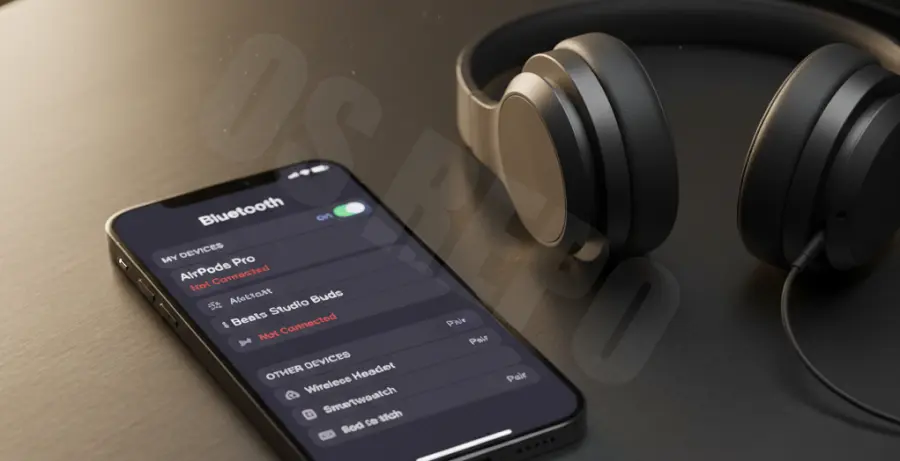
Bluetooth drops on the iPhone 16 Pro often stem from software conflicts within the Bluetooth 5.3 protocol or interference on the 2.4GHz frequency. When the “Pairing Failed” error occurs, it is usually a result of a timeout during the cryptographic key exchange.
In some cases, the iOS 18 firmware may mismanage power states for the wireless chip, leading to aggressive disconnection to save battery. This is particularly common when using legacy Bluetooth devices that do not support the latest Low Energy (LE) standards.
[ ]
]
Alternative Methods
If the immediate fixes do not resolve the issue, you must look into deeper system settings or environmental factors that influence signal stability.
Update iOS Firmware
Apple frequently releases “Point” updates (e.g., iOS 18.0.1) specifically to patch connectivity bugs. Always ensure your iPhone 16 Pro is running the latest version to maintain hardware-to-software compatibility.
Check for Interference
Bluetooth shares the 2.4GHz spectrum with Wi-Fi and microwaves. Try moving away from dense Wi-Fi routers or shielded metal surfaces to see if the connection stabilizes. Often, signal attenuation is the silent culprit behind “connection dropped” errors.
Disable Handoff and AirPlay
Sometimes, the iPhone 16 Pro attempts to switch the Bluetooth audio source to another Apple device via iCloud. Disabling Handoff temporarily can isolate the connection to a single pair of headphones or speakers.
Go to Settings > General > AirPlay & Handoff and toggle “Handoff” to the OFF position to test stability.